This quick start case study will give you a good starting point for how you can set up your entire membership site within 30 minutes
For more detailed tutorials on each aspect of the plugin and the various integrations available please use the navigation on this page along with the filter to find anything specific
FastMember is now a part of a larger suite of add ons which are brought to you by the FastFlow team. By having the FastFlow plugin installed you enable the central management of FastMember and FastFlow suite of products.
The Steps below will guide you through installing FastFlow, activating the license and installing FastMember.
Installing FastFlow Plugin on WordPress
You can install the FastFlow plugin the same way you would install any other plugin on WordPress, through the add new plugin section.
Make sure you have received a license key prior to getting started. You can sign up for our 14 day trial if you don’t have a license key already.
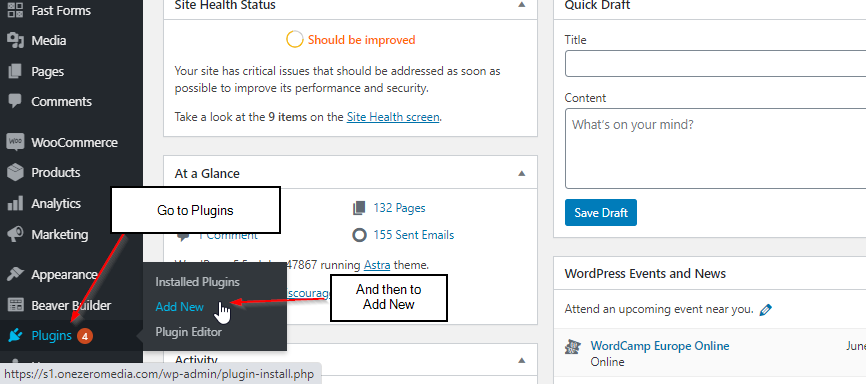
Step 1 Go to the plugins section on WordPress and then go to Add New.
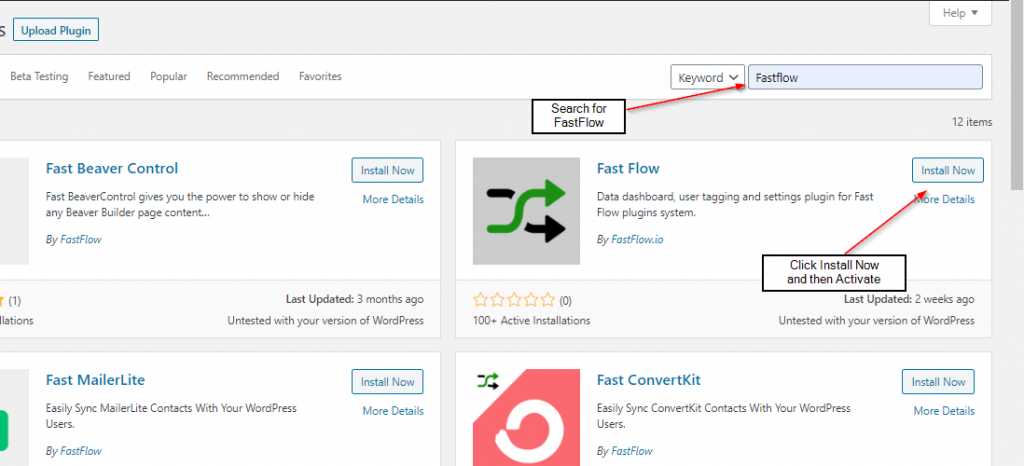
Step 2 Search for FastFlow in the search bar on the top right corner.
Step 3 Click on Install now and then click on Activate.
You have now installed FastFlow on your WordPress site and activated it. Next step would be to activate the license key on FastFlow.
License key activation on FastFlow
Like we’ve mentioned before, you cannot do this step if you have not received a licence key by now. If you have not purchased FastFlow and would just like to try it out, you can easily sign up for our 14 day trial here.
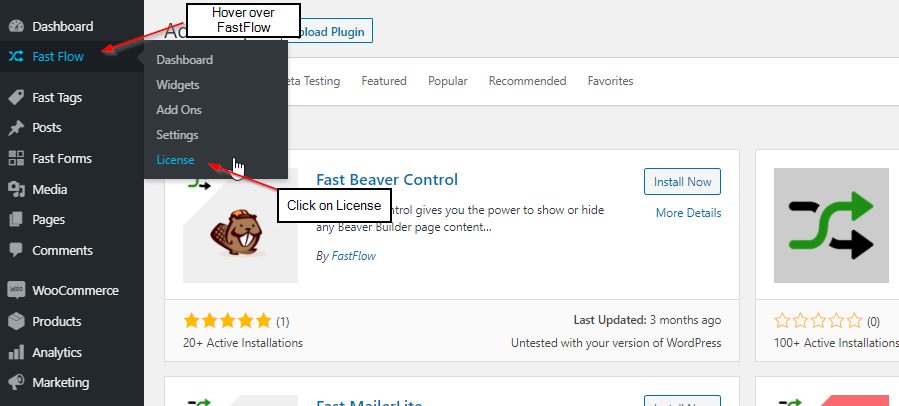
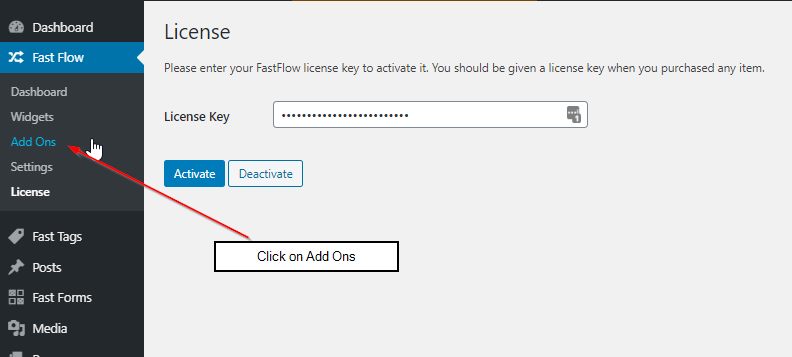
Step 1 As you have completed installing and setting up FastFlow by now it should be visible on the left column within the first few. Hover your mouse over FastFlow and then click on License.
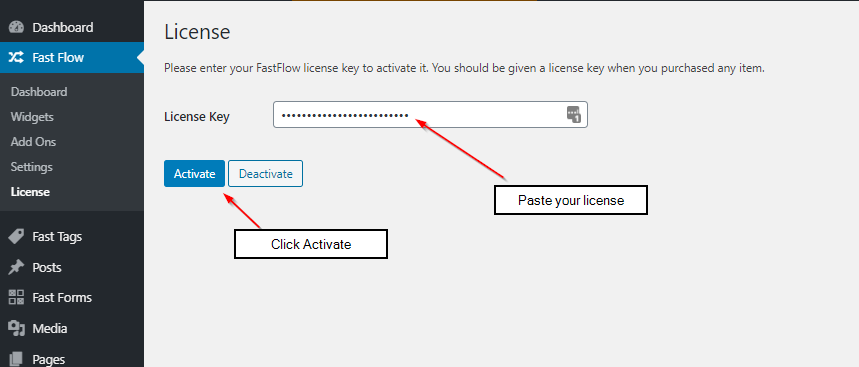
Step 2 Copy and paste the license key on the field and click Activate.
Activating your FastFlow license is as easy as that.
Installing FastMember
Now that you’ve installed FastFlow and activated your license, you can browse the available add ons for your license and the add ons we give away for free.
For that you can simply hover your mouse over the FastFlow button on the top left column on WordPress and click on Add Ons in the sub menu that appears. Feel free to browse our selection of products and contact us if you need any help on those.
This guide will only focus on installing FastMember, but you can install any other Add On in the same way.
Step 1 Hover your mouse over the FastFlow button on the left WordPress column and click on Add Ons in the sub-menu that appears.
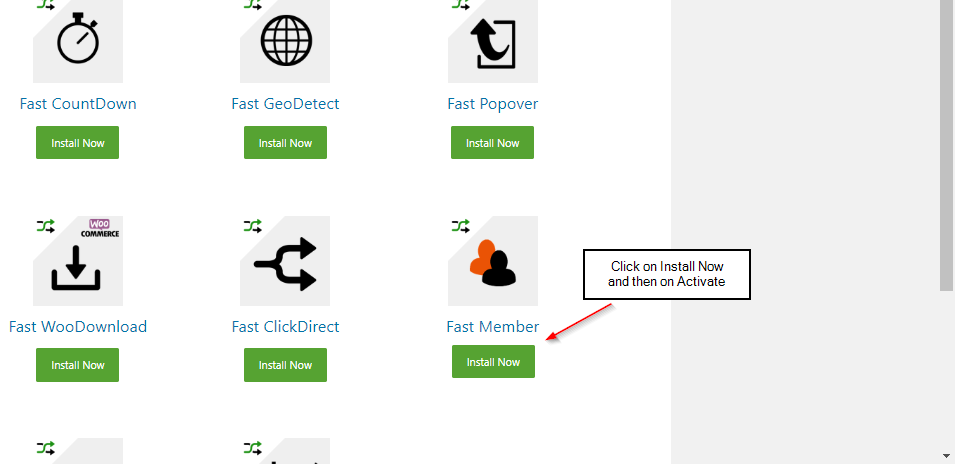
Step 2 On the Licensed section FastMember should be visible if your license has permissions to install it. Scroll down until you see it and click ‘Install Now’ button.
Step 3 Once it’s installed, click the ‘Activate’ button. Now you have successfully installed and activated FastMember.
Feel free to let us know if you have any issues or concerns using any of our products by reaching us through the support page.
2.1 Fast Member Settings
The Fast Member Settings panel is found within the FastFlow settings page and is where you will configure most of your global site settings.
Mailing Settings
The General Mailing settings will allow you to set the global email sender name and email address. This will be used in as the sender details for any product notification emails.
Note: Products each have their own sender email settings which you can also enter on each product.
Mailing Method – Fast Member will use the default WordPress mailer. You can change this with our recommended plugin POST SMTP. You can check out a full tutorial on POST SMTP here.
Miscellaneous Settings
Plugin Language – you can set one of the supported translations to use Fast Member in your own language
Currency – Set a site wide currency for accepting payments
Default Landing Page after Login – Set a global members home page. This will override the individual members home page product settings.
This setting is best used when you plan to sell more than one product or membership. By using this setting you can have a central ‘dashboard page’ for your members which links to the various membership levels and products once they have logged in.
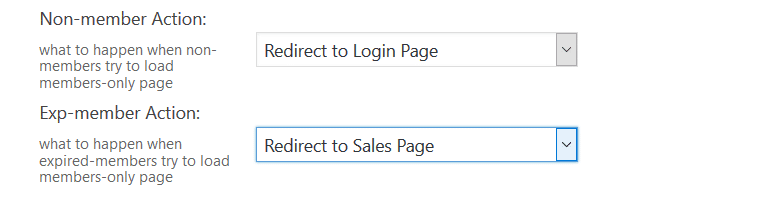
Non Member and Expired Member actions – these settings decide what happens to non members and those members who’s access expires (ie they miss payments).
Hide Comments on Protected Pages – this will hide the posted comments on pages which have been marked for protection keeping the discussion as well as post content private only for members who have signed up and joined that particular product.
Delete Plugin Database – this will remove all entries created by FastMember from the WordPress database. If checked and you uninstall Fast Member you will lose all data associated with the plugin. This is only used when you wish to remove all traces of FastMember from an installation. In most cases leave this unchecked.
Use Beta Versions – This will allow you to install the latest development version of FastMember. Unless you want to test the very latest features and can report back any possible bugs you can leave this unchecked.
We may ask you to check this in individual support cases to push a new update to your site to fix any issues.
3. Quick Start Wizard
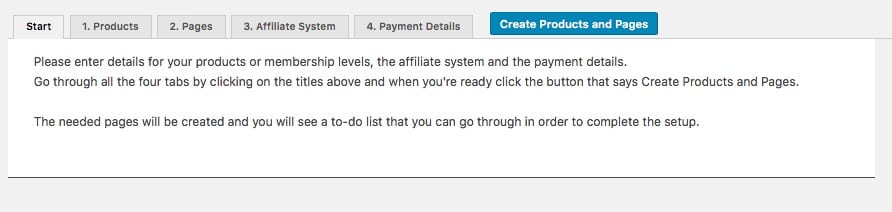
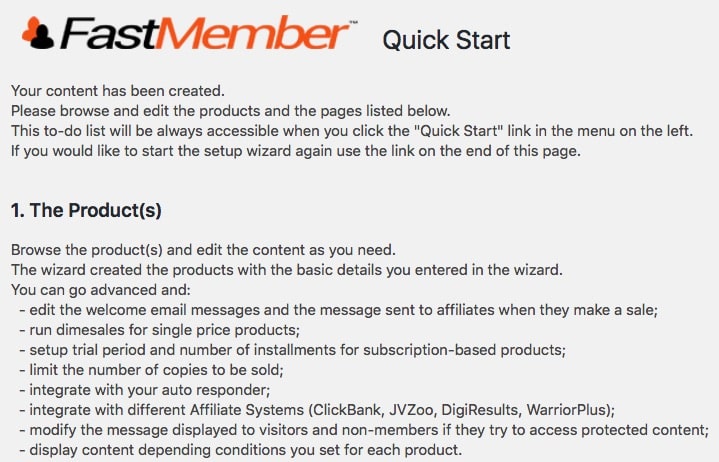
The Quick Start Wizard allows you to setup your products and membership pages in one simple step. From here you just swap out the content as needed and you are ready to begin making sales.
To get started go to Quick Start on the Fast Member menu
From here navigate through the four tabs adding the details required
1. Products
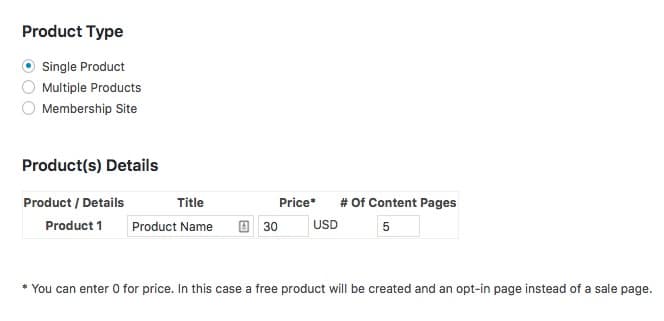
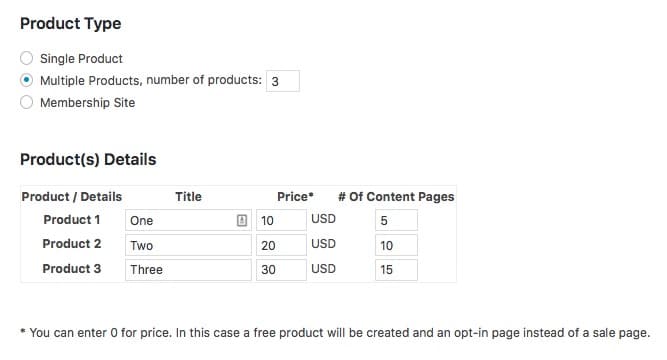
Here choose your product type
Single Product – This will allow you to create a single fixed price product. Simply enter the product title and price and however many content pages you wish to be protected
If you enter 0 for price this will create a temporary free product, which you can change later in the product settings. A free product can be used for registration purposes
Multiple Products – Here you can create as many products as you need all at once. Simply enter the title, price and number of pages to be protected as needed for each product.
Again you can enter 0 price for any of the products to create a free product
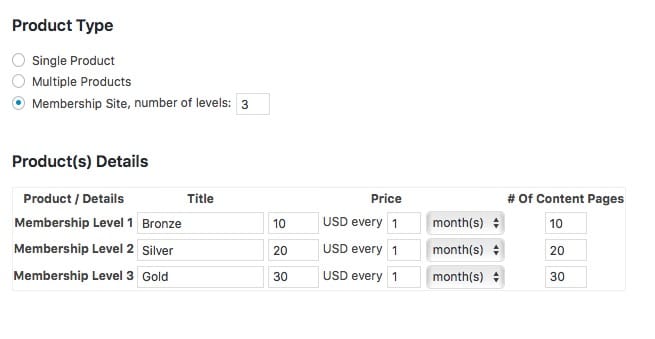
Membership Site – This option will let you create as many membership levels as you need for subscription based products. Again enter the titles, prices and also the duration of the billing frequency. Finally enter the number content pages to be protected
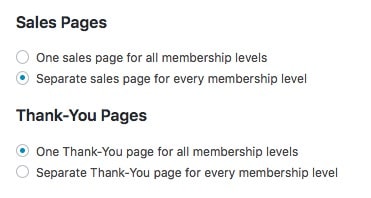
2. Pages
You can chose between a single sales page for all your products/membership levels or a sales page for each product/level.
This will add the payment buttons for each product to those pages and associate the pages within your product settings. You can always change this later.
Again with the thank you pages, this can be a single thank you page for all your products or thank you page for each product.
Again you can always change this later in the product settings if you have a specific flow for your funnel and wish to direct your new customers to another offer after their purchase.
If you just have a single product there will be no option here and a single page will be created for both the sales and thank you pages.
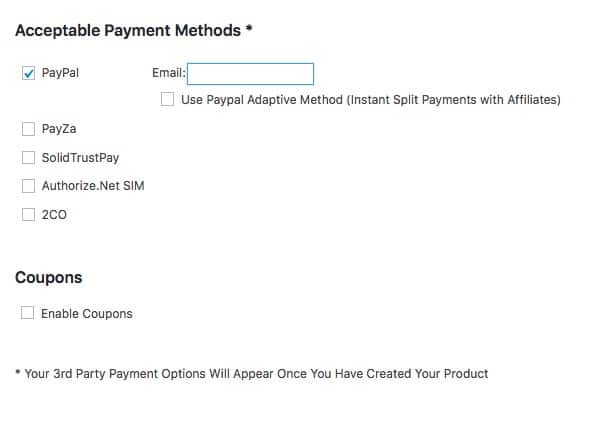
3. Payment Methods
Here you can choose one or all of the integrated payment methods. You may see extra options here depending on which other payment addons you have and their specific settings.
Fast Member Quick Start Wizard Payment Methods
Simply choose the method you wish to use and enter the details as required. This will create a button configuration for each of those methods chosen. You can alway edit this or create new configurations later.
If you are integrating with an add on or third party platform you will find the settings for these on the integrations tab of the product once it is created.
Below the payment options you’ll see a checkbox for coupons. If you enable this a shortcode will be added to the sales page which will create a coupon form. Again this can be changed later by adding or removing the shortcode as needed.
Once you have all your details added hit the Create Products and Pages Button. Fast Member will quickly go through the settings and create all your products, pages and payment buttons.
You will then be redirected to a summary list of the steps you then need to go through to complete your site setup.
4. Products
4.1 Product Settings Overview
Each product has a number of tabs with various settings
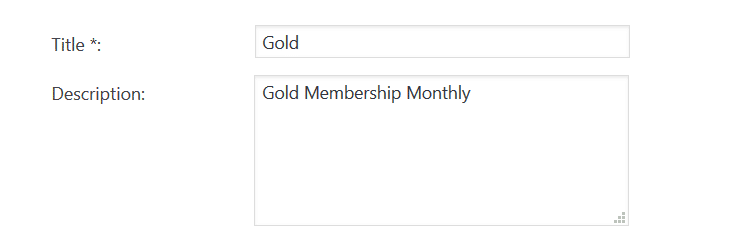
Main Details
Here you set up the product title and a description.
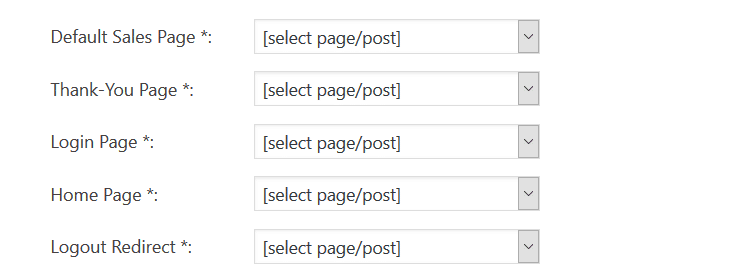
Next we select the pages associated with the product
Sales Page – the main page where you will place the product payment button
Thank You Page – This is where your customer will be taken directly after purchase. You can set this to be an upsell or order confirmation page.
Login Page – The page where your customers will login
Home Page – The page your customer is taken to after login
Logout Redirect – Where your customer is taken to when they log out. You can send them to another offer if you wish.
Next we select the membership type.
You can view more details on each of the product types here
You can create a bundle of products. If you choose this option you will be able to select any number of other products and your customer will be given access to these at the same time. This is useful if you have bonus products you would like to add to your main offer.
Member Roles
You can set the default signup role for both the Member and the affiliate here if you wish for them to have something other than the default WordPress Subscriber role.
Caution: This could pose a security risk if you were to set your Members or Affiliates with Admin role, so use this wisely.
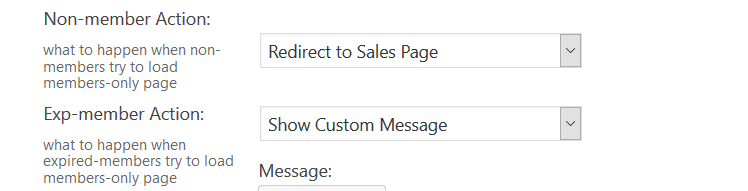
Non Member and Expired Member Actions
This is what will happen when a Non-Member or an Expired Member tries to visit a page with members only content. The default setting will display a message on any page a non member visits.
There are a number of other options for both Non-Member and Expired Members which include setting a redirect and also showing a custom message.
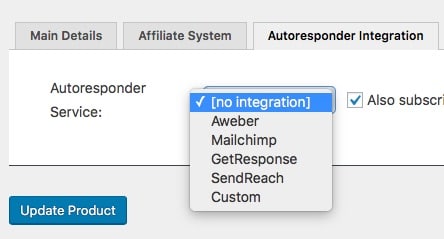
Here you can choose one of the built in integrations. If you have one of the Fast Flow Autoresponder add-ons installed you will see an extra option appear in the list.
Each option will have it’s own specific settings which are linked to below You can also choose to subscribe the member to the built in Autoresponder system.
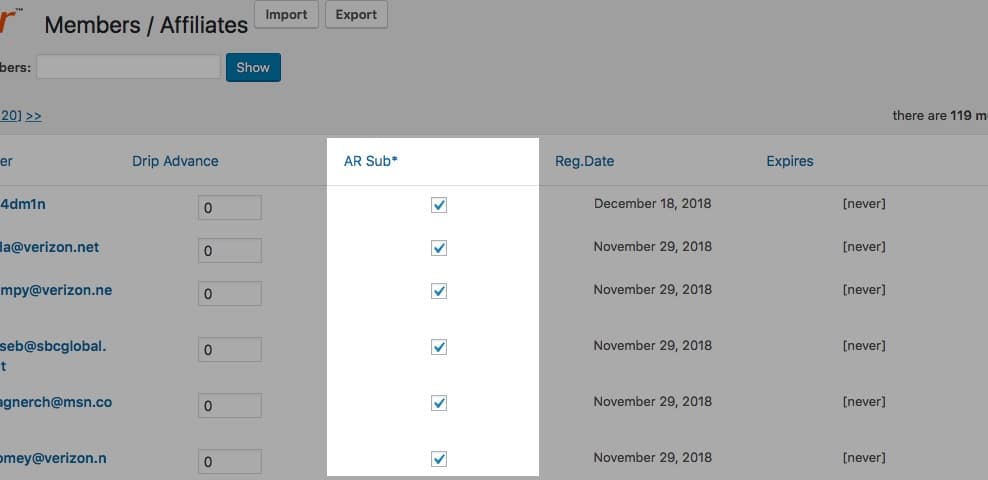
This option can be changed for each subscriber on the Member / Affiliates page using the A/R Sub check box
Content Templates
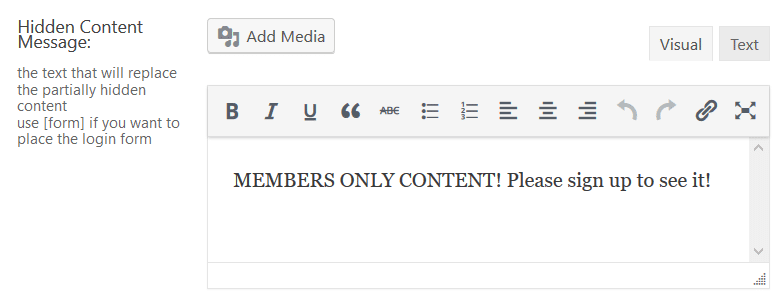
Here you can change the default Hidden Content message which is displayed to members when you use the ‘partially hidden content’ short-code.
This message can be formatted just like any other WordPress post and can contain images, links and buttons of you wish.
Email Notifications
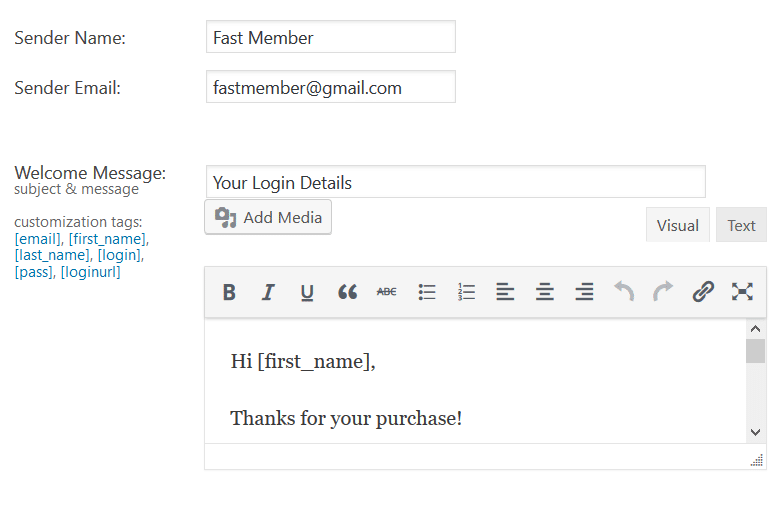
This is where you set the emails associated with each product. Each product can have a unique a sender name and email address.
You can also customise the Welcome Email message with various tags.
This will be sent immediately after purchase of a product, giving the new member the required access details for the membership site.
If they already exist as a member within WordPress the password will be hidden and a note to login with their existing password or request a password reset will be added to the message.
If ‘Send Email to Verify’ is checked within the Free Product there will be an additional email notification for the confirmation message.
Within this you can add the tags for user details plus the site url and a confirmation url which will be generated unique for each subscriber.
Once this is clicked they will be confirmed and logged into the site.
If you have enabled the Fast Affiliate add on you will notice 2 more emails:
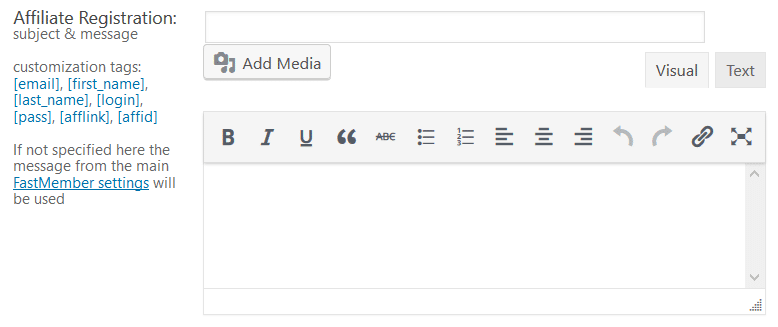
The first is the Affiliate Registration email.
If left blank the global Affiliate Registration email from the Fast Member settings page will be used. If you wish to create a product specific Affiliate registration/welcome email then you can enter the details here.
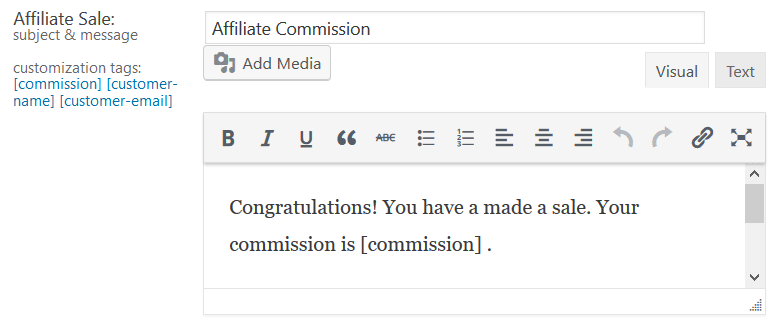
The next email is the Affiliate Sale notification. This will be sent to your affiliates each time a sale is made. You will see a preconfigured message already added which you can change as needed with extra customisation tags to enter the customer name and email if required.
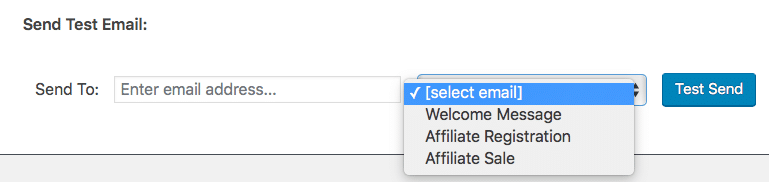
Finally at the bottom of the Email Verification page you can send a test email for each of the messages.
Integrations
The final tab of the Product Settings contains a section called integrations. This section will not appear until when a new product until it is saved.
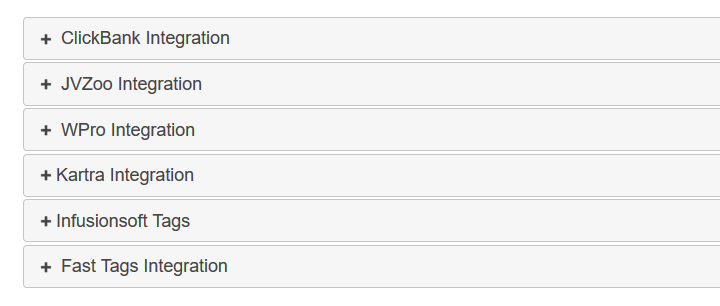
Once saved you will see the options for the built in 3rd Party Integrations, plus any Fast Flow plugin integrations which you may have installed.
If you want to sell access to content or products for download without requiring a subscription then you can use a One Time Payment product.
This is ideal for ‘tripwire’ offers, up-sells, down-sells, cross sells or any other situation where you simply wish to make an offer without a recurring payment.
NOTE: If you wish to create a One Time Payment product with a free trial then you will use the subscription settings with a trial but only one installment. View the full Subscription Settings tutorial here.
If you set the One Time Payment product to ‘0’ it will create a free product, however you will get more options with the actual Free product type.
Fast Member gives you full control over membership site subscriptions from within WordPress.
Setting up a subscription is straight forward and done within the product settings.
In the Membership Type section select Payment Subscription
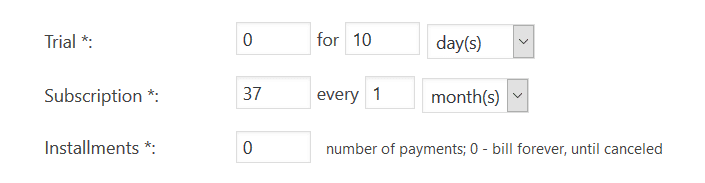
You will see the following options
Trial – Set a price and duration for either days, weeks, months or years for any trial you wish to offer. You can also offer a Free Trial which enables you to take payment details but will not bill your members until the trial period is over.
Subscription – Set the price for the subscription and the frequency of the billing period. You can choose days, months, weeks or years.
Instalments – Set the number of instalments – if you set as 0 it will bill ongoing until cancelled
How Subscriptions Are Managed
After your member purchases a subscription they will be added to that product with both a start date and an expiry date. You can view the details for each member on the Members/ Affiliates page where you can see the Registration Date and Expires columns.
Each time a subscription renews, the Expires column will be updated for the new period.
If a payment is missed and the expiry date passes the member will remain in an expired state and the current access to any content will be paused until they renew their membership.
Manually Updating Subscriptions
You can manually update a member with a new expiry date by re-adding them to a product, setting the Membership date you wish their new access to expire on.
Free Products can be created for different purposes including Free Memberships, Site Registrations, Product Upgrades or for adding members to the Fast Mailer Autoresponders.
You can also combine any of these uses (for example a Site Registration which also adds the member to an Autoresponder)
Free Memberships
A free Membership is created using a Free product and associating any number of pages, posts or files to be protected as part of that product in the same way you would with a paid product.
Site Registrations
A Site Registration is a Free Product created solely for the purpose of allowing members to register on your site.
The content they get access to will be very minimal and may just be the basic members area pages such as the members home and their account page. They will either have to purchase or perform some kind of action to get further access to content.
Product Upgrades – The Upgrade Button
You can offer bonus products or upgrades that are only available to members of certain products. By using a free product and the ‘Upgrade Button’ your members simply have to click a button to get access to that product.
This can be used as a way to monitor if your members are accessing certain pieces of content. You can even trigger an new autoresponder series once they hit the upgrade button and get added that product.
Autoresponder
A Free Product can be used purely as registration product for both the Fast Mailer Autoresponder and any of the integrated Autoresponder services.
Once someone has signed up to the free product they will be added to the Autoresponder you have setup and then you can follow up with them as needed.
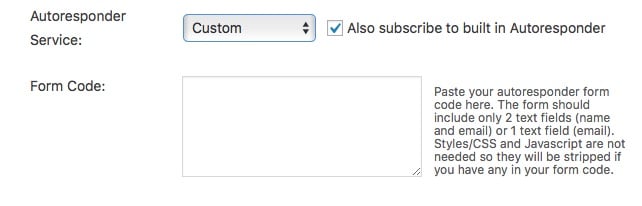
There is also support for a HTML form code. The form should include only 2 text fields (name and email) or 1 text field (email).
You can use any HTML form code
Styles/CSS and Javascript are not needed so they will be stripped if there is any in your form code.
Internal Autroresponder System
Alongside the external Autoresponder integrations, when Fast Mailer is installed there is also an option on each product to allow the members to be added to the Fast Mailer Autoresponder and Email Broadcasting
Subscribe to built in Autoresponder
This will give the status of Subscriber for the member in the Members / Affiliates page and will allow them to receive the internal Autoresponder and Broadcast messages which are sent to members of those products.
Subscriber Status is checked on the Members / Affiliates management page
4.8 ClickBank Integration
ClickBank integration is done in 5 steps.
1. Open the ‘Advanced Tools’ section in your ClickBank account Vendor Settings page and enable ‘Encrypt Transaction URLs’
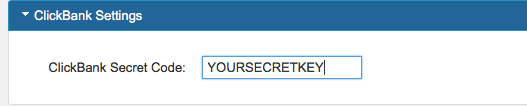
2. Add the Secret Key from ClickBank into the Fast Flow settings page
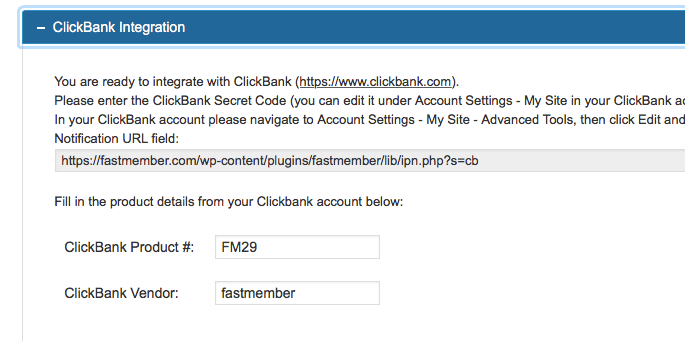
3. Copy the Fast Member IPN URL from the Fast Member product into the Instant Notification field within your ClickBank account settings and choose the latest version of the IPN. Test IPN to verify the URL is connected.
4. Add the ClickBank product ID and vendor details to the Fast Member product.
5. Add a ClickBank Paylink to your sales page.
You can use Fast ClickBank pro to generate a unique Paylink for your product along with Fast Buttons to add a CSS3 payment button to your sales page.
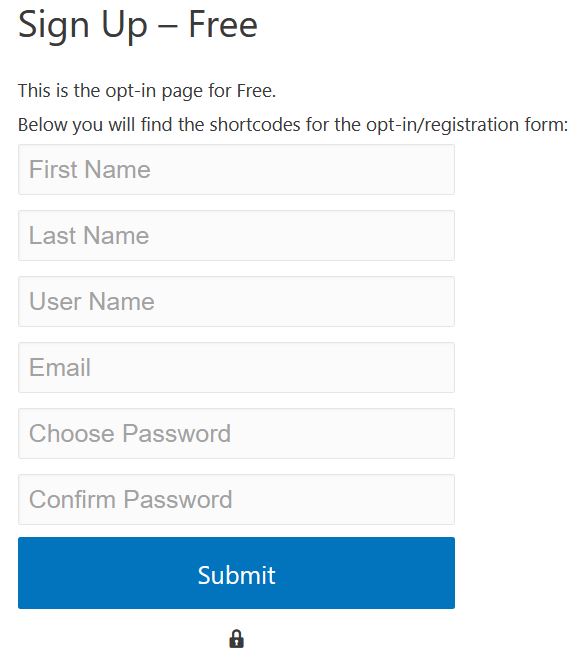
Registration forms are used for letting people sign up for Free Products so they can join your site and access any free content you make available.
You can let your members register with their full name and choose their own password and username, or you can create a simple form which only requires an email address and the password will be securely generated and mailed to them.
You can also choose to add any number of custom fields which will be added to the WordPress user profile and available for export as CSV.
Here is how to create a registration form in Fast Member:
Click the orange Fast Member icon from within the Classic WordPress editor
Select Signup Form (Free Products) from the ‘Insert Shortcode For’ list
Next you can check which fields you wish to hide from the form
Add GDPR terms – this will add a checkbox for the visitor to agree to your site terms in for compliance with EU GDPR regulations User Name – this will hide the User Name field from the form. If selected the email address will be used as the user name. First Name – this will hide the First Name field. If selected the WordPress user profile will have no entry for First Name Last Name – this will hide the Last Name field. If selected the WordPress user profile will have no entry for Last Name Password – this will hide the Password field from the form. If selected a secure random character password will be generated and sent within the Welcome email.
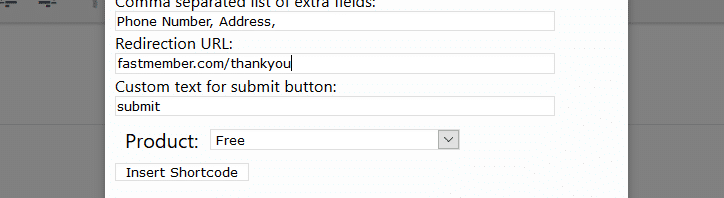
Next you can add Extra Fields.These will be separated by a comma as CSV.
NOTE: The fields do not require spaces between the commas.
Any spaces within the extra fields (for example ‘Telephone Number’ will be displayed within the form, but will be closed together when adding to the database or displaying in the CSV export (ie TelephoneNumber).
The form entries will support spaces and the entries will be displayed in the WordPress user profile exported in the CSV as they are entered in the form.
Redirection URL – you can enter a URL here which will override the default product thankyou page. If left blank it will use the Thank You page form the product settings.
Submit Button – You can change the default ‘ Submit’ button text to use a more suitable Call To Action for your signup process.
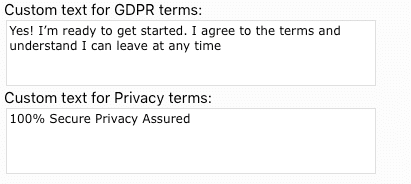
GDPR Messages – You will find some default messages for the GDPR and privacy policy regulations. You can change this text to suit your policies if you wish.
Finally select the Free product you wish your members to signup for
Once you hit ‘Insert Shortcode’ you will see a shotcode added to your content which will have the various fields added or left empty depending on the options you have chosen.
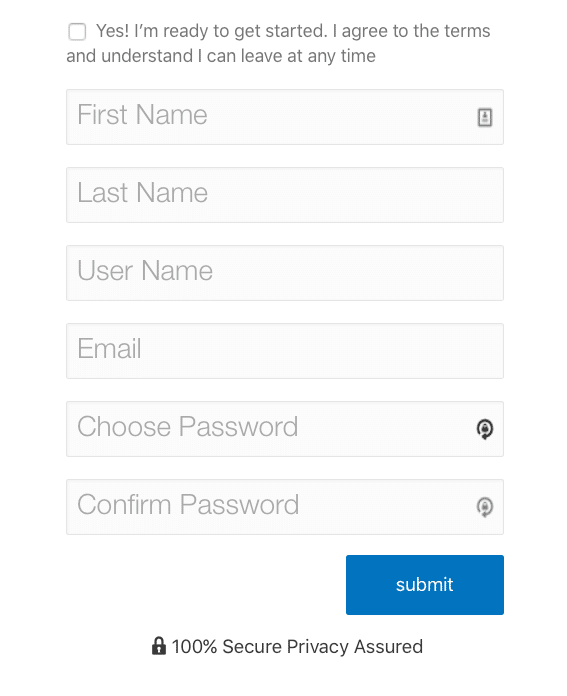
Here is an example which will display all the signup form fields, GDPR and Privacy texts, but without any Extra Fields and with the default signup form button text.
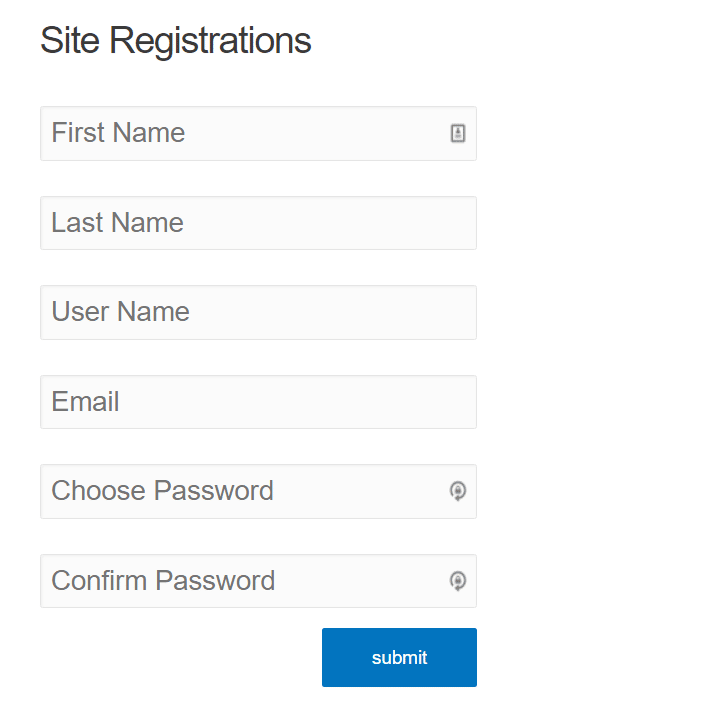
This would display a form similar to the one below.
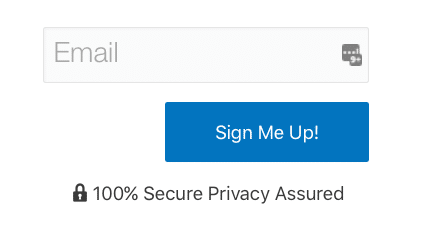
In this next example all the form fields have been hidden (except the email field which can not be hidden) and the button text has been changed to ‘Sign Me Up’
Notice how the form fields are shown or hidden with the use of a 1 or 0 between the quotes.
This will show a signup form similar to the one below
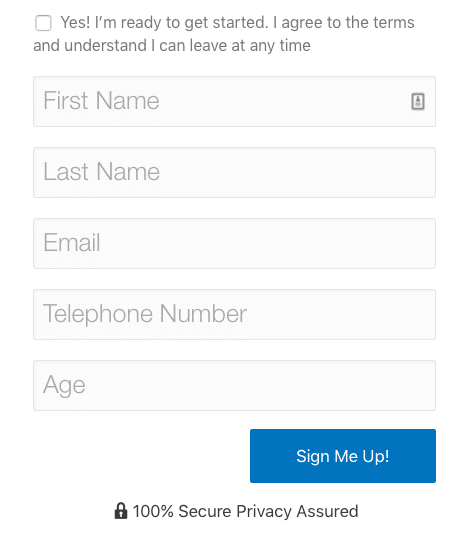
In this final example you can see a signup form which shows the GDPR notice, First Name and Last Name (Email is shown by default, so only Username and Password have been hidden) plus 2 extra fields for Telephone Number and Age. A redirect URL has also been added which will take the new user to a special offer page after registration
This will display a signup form similar to the one below
4.11 Product Priorities
When you have more than one product or membership level you may find some conflict can arise over which ‘Members Home Page’ (AKA the default Landing Page after login) your members should be taken to after logging in.
Fast Member has a number of ways to overcome any problems like this.
1. Set A Global Login Landing Page
You can set a global landing page where all members will be taken to after login. This is the recommend overall solution and is set in the General settings and will affect all products.
Set a global Login Landing page in the General Settings
You can choose to overide this with specific product IDs on the login form shortcodes so you still have control from a specific login page if needed.
Use a product specific login form
2. Drag And Drop Product Priorities
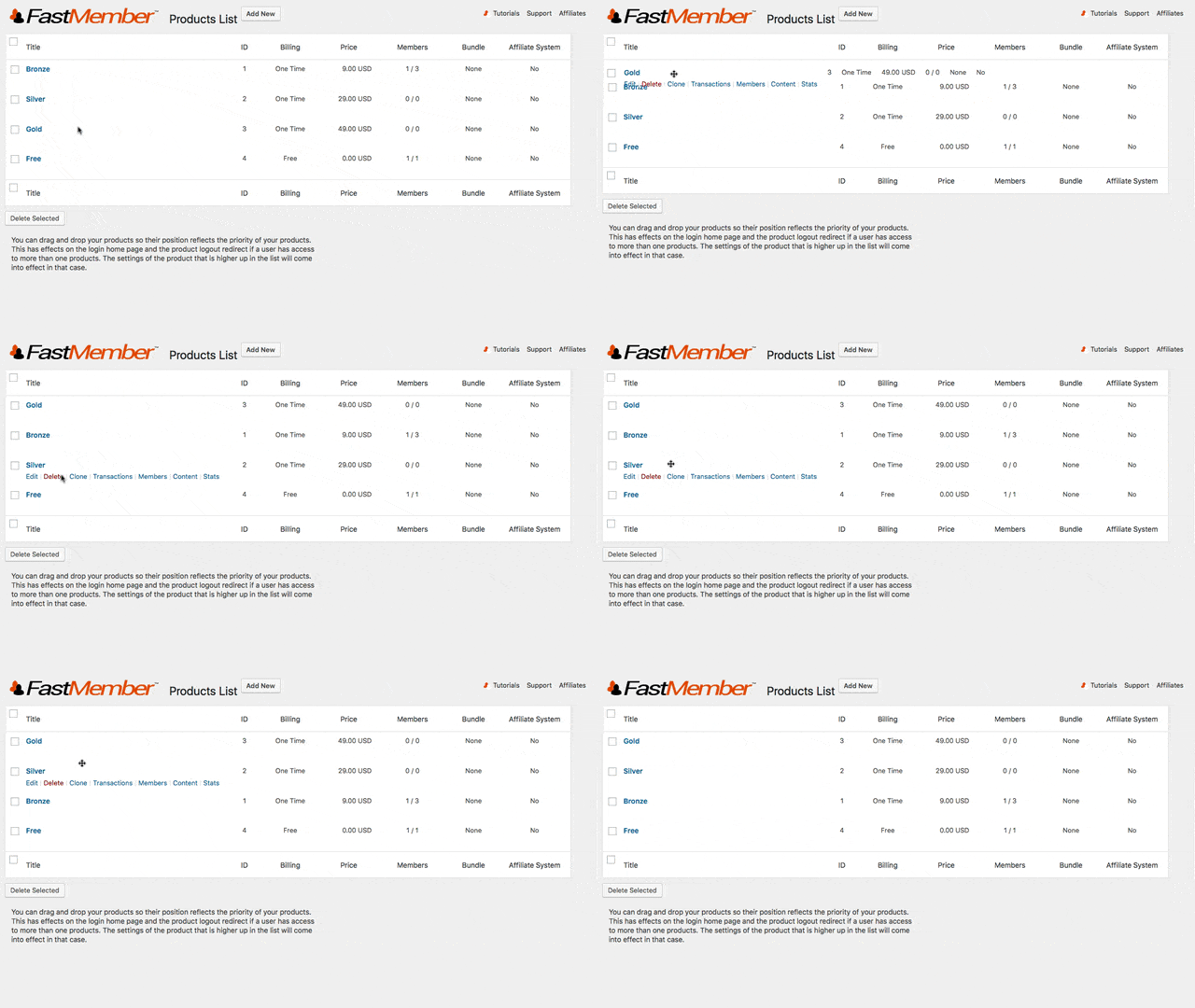
You can drag and drop the order of the products in the Products List. When you move a product to the top this will take priority over the products below. This will only be in effect if the member is part of that product. If they are a member of the product below then those settings will take priority.
Drag and Drop the Product Priorities
Setting the global login landing page in the General Settings will override any product priorities
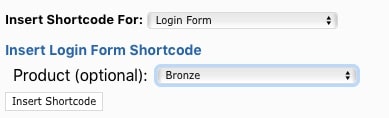
3. Login Form Shortcodes
As mentioned you can create product specifc login forms which will always take the member to the home for that product – provided they are a member of the product they will access those pages. If not they will be redirected or shown a ‘non member content’ message.
Use a product specific login form
5. Content
5.1 Drip Feed Content
Drip feeding content is handled in 3 ways. For pages and posts and is done at the same time as the content protection making the setup super quick and easy.
You can either bulk select the pages and posts in the Protected Content section or you can select the products to add a specific page or post to on the page / post itself.
Protected Content
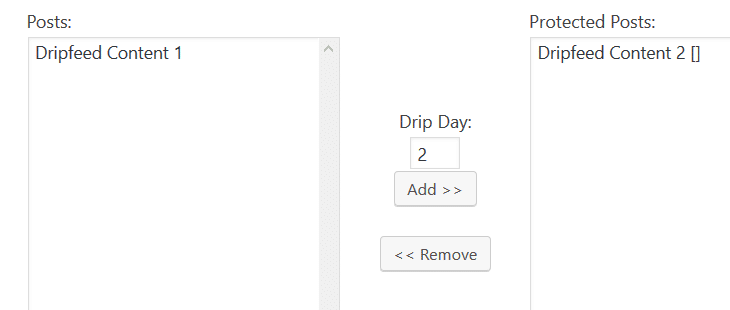
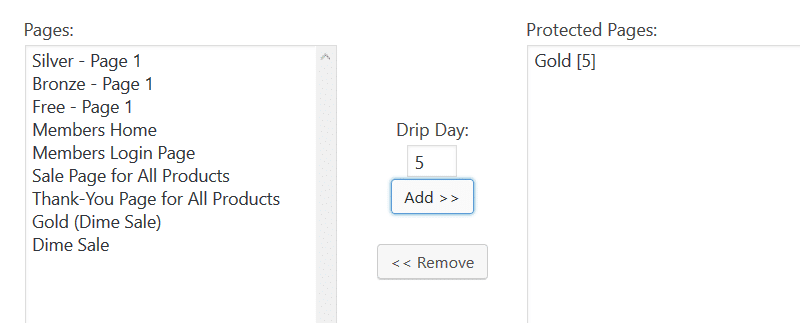
When selecting the pages / posts for protection you can enter the drip day the content will be made available in the box before adding. Once set you will see a number in square brackets by the pages / posts. This will remind you which day that page or post will become available to members of that product.
You can also drip feed the files your site members have access to in the same way.
You can view the file protection tutorial here and the remote file protection (including Amazon S3) tutorial here
Page / Post Settings
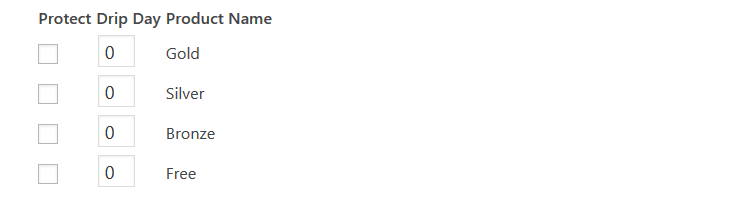
On each page or post you will see a meta box below the post editor for the products you can add that page / post to.
When selecting a product you can also enter a drip day.
Once this page / post is saved that content will be protected from all visitors.
Members of that product will then get access once they reach that day in their membership.
Membership Drip Advance
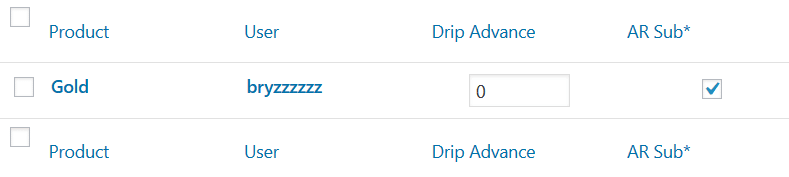
You can advance certain site members through your drip feed content by updating the Drip Advance box on the Members / Affiliates page.
One scenario for this is you may wish to give review access to a course then you would edit that user updating their drip advance to the end of the drip sequence.
For example if you had a 2 month sequence you may set it to 60 days which would advance that user by 60 days and allow them to skip the need for the drip sequence to play out.
Fast Member gives you 2 ways to protect the pages and posts on your WordPress membership site.
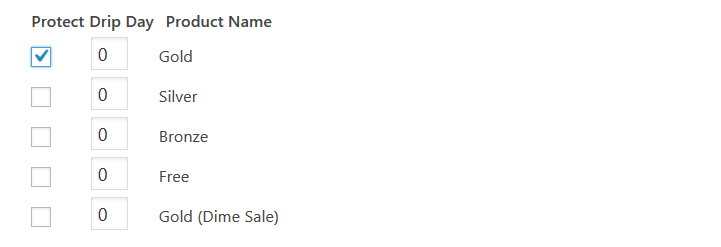
Directly on each page / post – there will be a meta box with a list of the available products. Simply checking the tick box next the product name and saving the post will now make that page / post protected as part of that product.
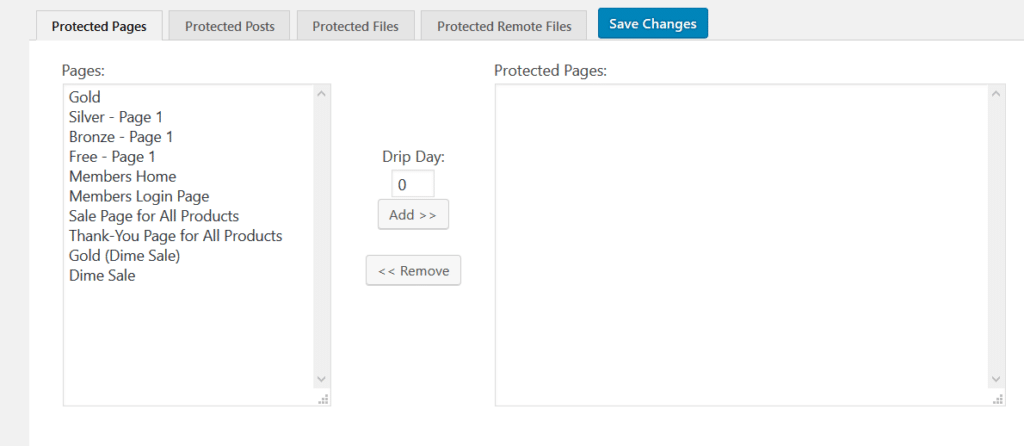
From within the Protected Content manager – Each product will display all the pages or posts published on your site. You can bulk select which pages / posts you wish to protect and add them to the Protected Content list. Once added the pages / posts will be protected as part of that product.
You will notice in either option, at the same time as making the content protected you also have the option to drip feed the content.
This makes it super quick and easy to manage your content protection and drip feeding options at the same time.
You can view the complete Drip Feed tutorial here to get a full understanding of how the Fast Member Drip Feed works.
Default Non Member / Expired Member Message
When a ‘Non Member’ or ‘Expired Member’ tries to access content that is protected then Fast Member will perform one of the following ‘non member actions’.
Show Default Signip/Login Message – If they do not have access to that product then a default message will be displayed
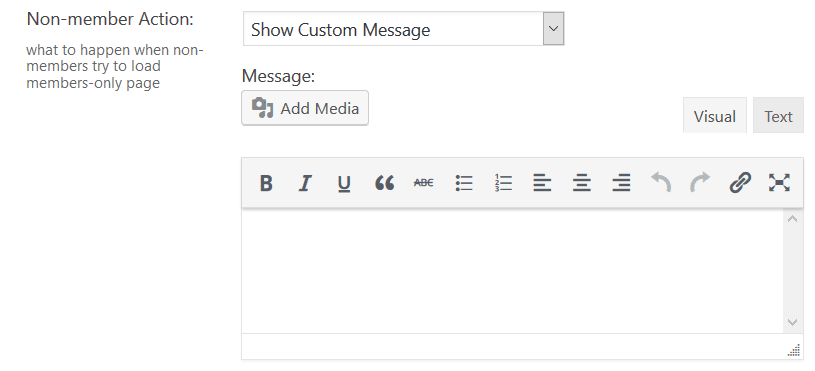
Custom Message – You can display a customised message for each Non Member / Expired Member status to those members
Redirects
You can also choose 3 redirect types for both Non Members and Expired Members.
Redirect To Login Page – Will redirect the Member to the product login page.
Redirect To Sales Page – Will redirect the Member to the product sales page.
Redirect to a Page/Post – Will redirect the Member to the chosen page or post.
Feel free to let us know if you have any issues or concerns using any of our products by reaching us through the support page.
5.3 Protected Files
Onsite File Protection
This tutorial is for Onsite (On Server) File Protection. If you are looking for Remote File Protection, click here.
Onsite File Protection Overview
FastMember Onsite File Protection gives an easy to use, secure way for you to host protected files on the WordPress installation which can only be viewed or downloaded by authorized users such as members of your website.
Setting up Onsite File Protection add on
Setting up this add on is quick and easy. Follow the steps below and you will have it set-up in no time.
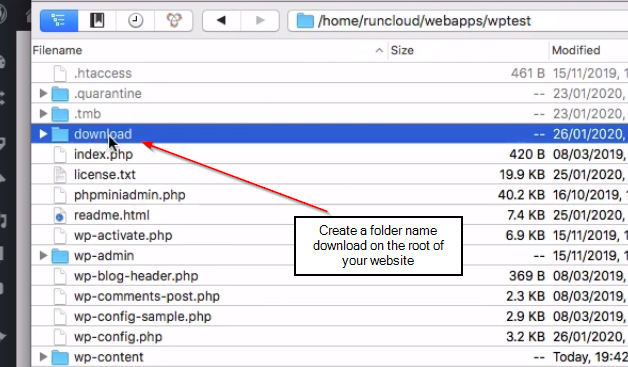
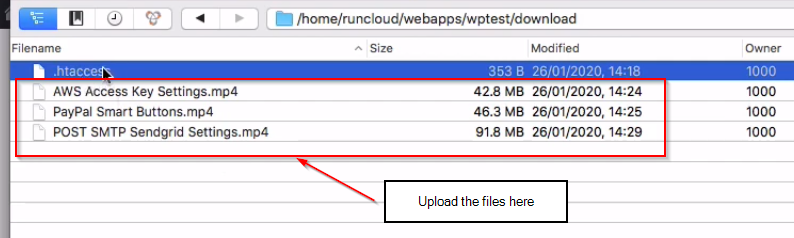
Step 1 Login to the root directory of your website using sftp/ftp and create a folder named ‘download’.
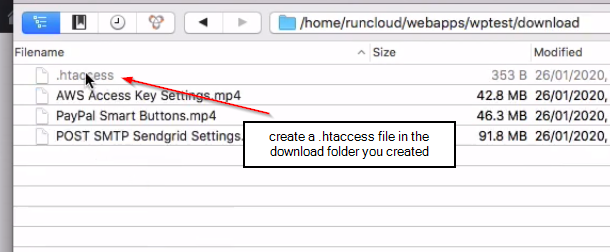
Step 2 Inside the ‘download’ folder create a file named ‘.htaccess’.
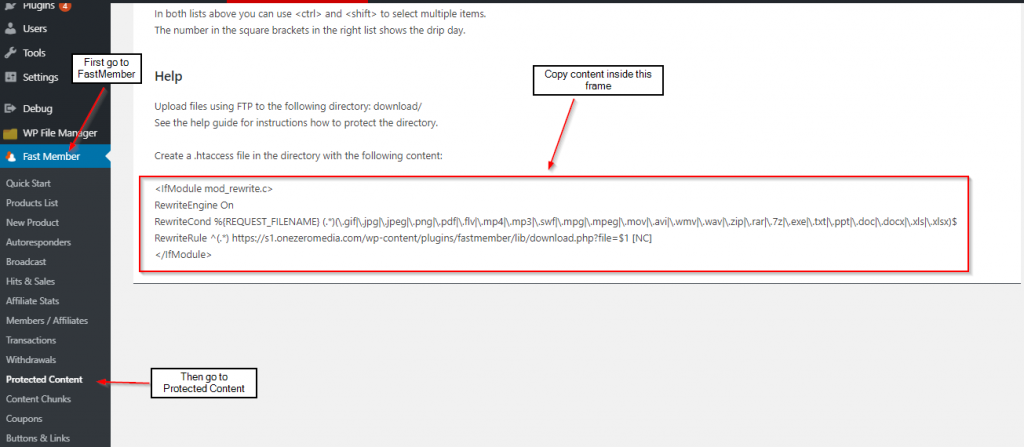
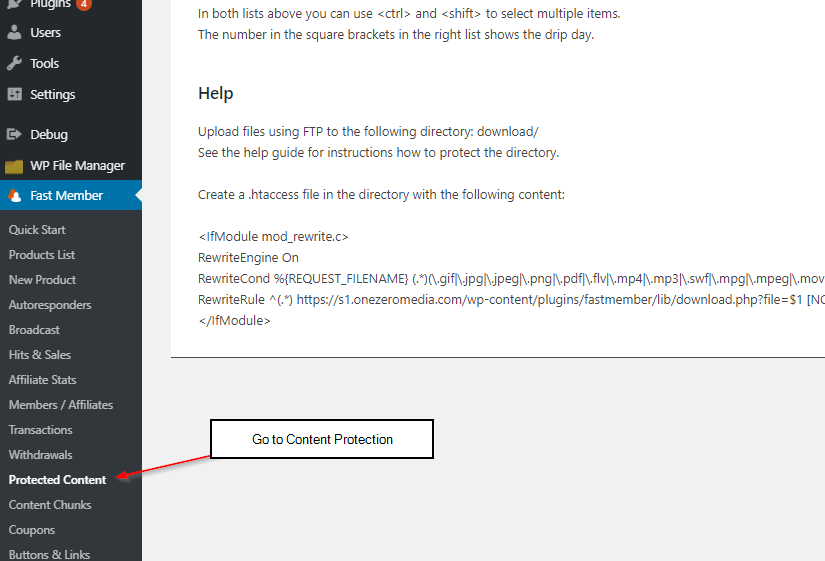
Step 3 Go to FastMember Protected Content, select any product from the product list and click on ‘Protected Files’ tab. Scroll down to the bottom and copy the code.
Step 4 Paste the lines you copied inside the ‘.htaccess’ file and save.
Adding Files as Protected Content
Any file that needs to be protected must be copied into the ‘download’ folder which was created on the root of the website.
Only the files that are added to the ‘download’ folder will be listed as eligible files on the ‘Protected Content’ tab in FastMember Content Protection page.
Assigning Privileges to Membership products
Assigning privileges to different membership products using the FastMember Onsite File Protection is as easy as picking the membership product and assigning files that members of that membership product can view.
The steps below will guide you through assigning files to membership products.
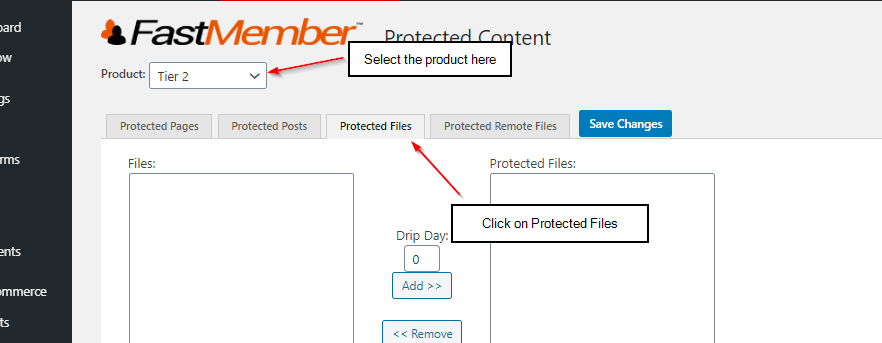
Step 1 Go to the Content Protection page on the FastMember menu.
Step 2 Select the product from the products list you wish to assign file access privileges.
Step 3 Navigate to the ‘Protected Content’ tab.
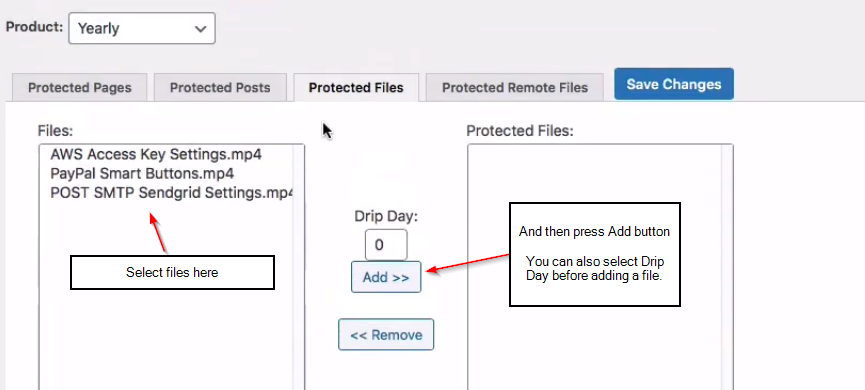
Step 4 Select the files you need to provide access to and move them to the ‘Protected Files’ box. Finally save the changes.
Drip Day feature will allow you to decide how long a member has to be registered for before he gets access to the file.
As an example, if you only want to grant members who have been registered for thirty days, simply enter 30 on the field, before adding the file to the ‘Protected Files’ box.
Feel free to let us know if you have any issues or concerns using any of our products by reaching us through the support page.
5.4 Remote File Protection
This tutorial is for Remote File Protection. If you are looking for Onsite (on-server) File Protection, click here.
FastMember Remote File Protection Overview
Rather than uploading files to the same WordPress server, you can host them elsewhere (such as Amazon S3) and link those files to your system securely using the FastMember Remote File Protection System.
For the purpose of this tutorial we will be considering Amazon S3 storage. However, the FastMember Remote File Protection supports all major storage service providers and the process is similar.
By default, your WordPress website does not have secure access to AWS S3 buckets, by using Fast AWS add on you can integrate your website with AWS securely using AWS S3 API. This is a must if you need to access remote files on AWS. If you have not already, please follow the Fast AWS guide here before continuing with the tutorial below.
Creating a S3 bucket on Amazon AWS
Amazon S3 is the storage solution by Amazon AWS. The steps below will guide you through setting up an Amazon S3 storage bucket. If you already have a bucket created you can skip this section.
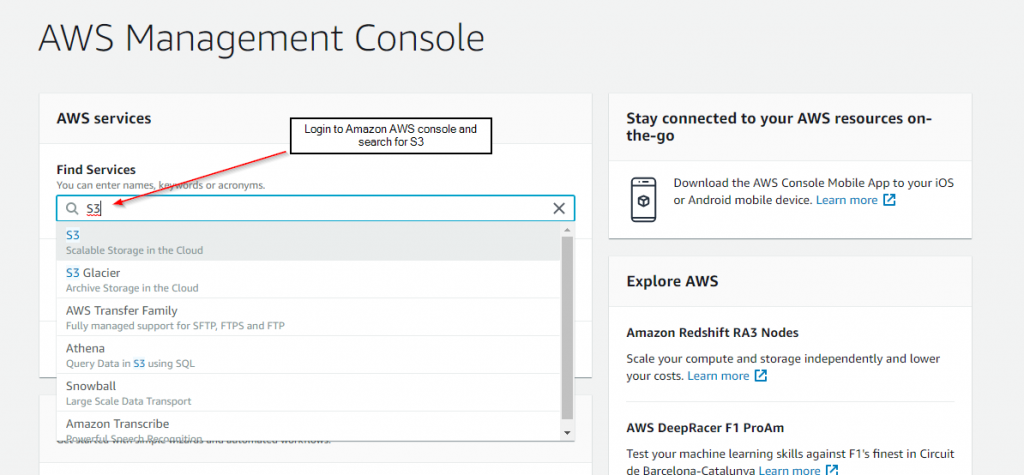
Step 1 Login to the Amazon AWS console and search for S3 in the find services field.
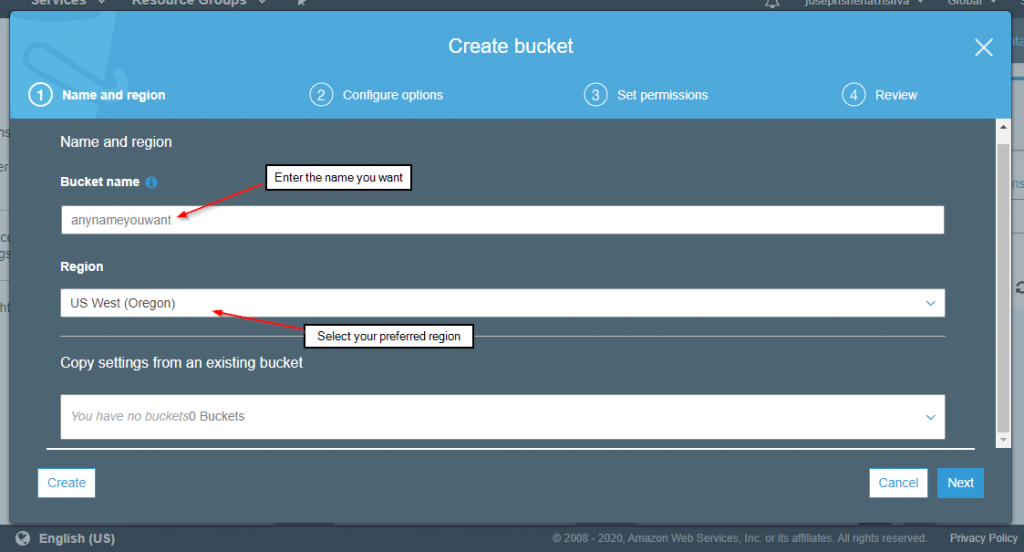
Step 2 Click on the Create bucket button.
Step 3 Give a name for the bucket and select your preferred region. Once you are done click next.
Step 4 Default settings work fine on this page. Simply click next if you don’t have a requirement to change any settings on this page.
Step 5 Review the options you’ve selected for the S3 bucket and when you are satisfied click Create.
Uploading Files to a S3 bucket on Amazon AWS
Now that you have created a S3 bucket, you need to upload files to it. You can skip to the next topic if you have already have files uploaded to S3.
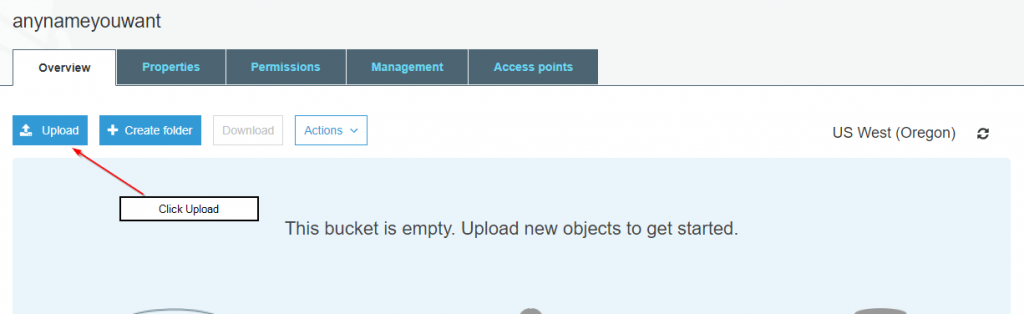
Step 1 Click on the bucket you just created to go inside it.
Step 2 Click on Upload.
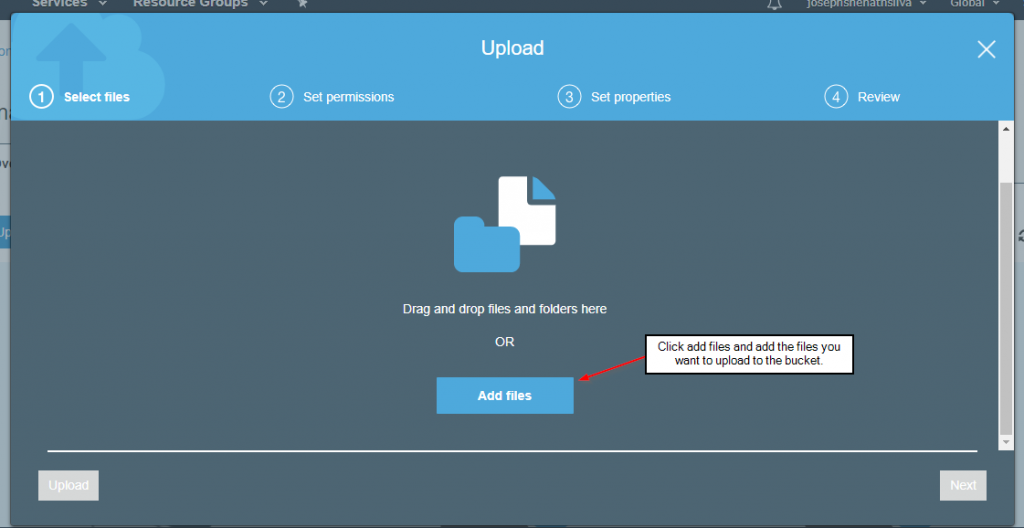
Step 3 Click on Add files and select the files you wish to upload. Then click Next.
Step 4 On this page you can set individual access for files. However, if no specific requirement is there you can simply click next.
Step 5 Click upload to get the files uploaded. It might take some time depending on the file size and the number of files you are uploading.
Linking files on S3 bucket to FastMember Remote File Protection
Once files are uploaded into the S3 bucket, you need to get the file paths of the files you need to link to FastMember remote File Protection System. Although there are various methods in getting file paths, the steps below will guide you in getting the files paths directly through the AWS Console and using CyberDuck.
Copying links using Amazon Console
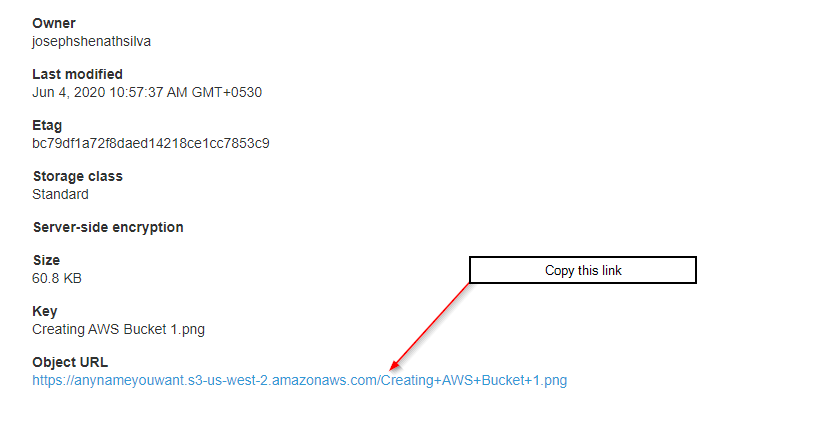
Step 1 Navigate inside the S3 bucket you have files stored and click on the file you wish to link to FastMember Remote File Protection.
Step 2 Scroll down and copy the Object URL.
You need to do this for each file you wish to add to remote file protection system.
Copying links using CyberDuck
Advantage of using CyberDuck application is that it allows you to copy links of multiple files at once.
Step 1 Open CyberDuck and connect to your S3 bucket.
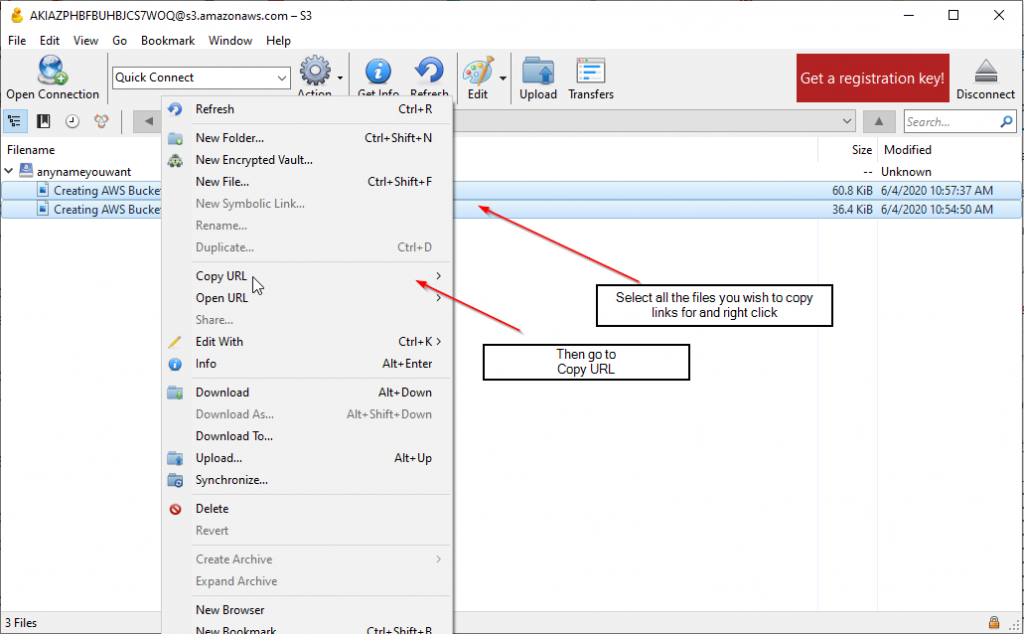
Step 2 Select the files you need to copy links of. You can do this by clicking on files while holding the ctrl button down on the keyboard.
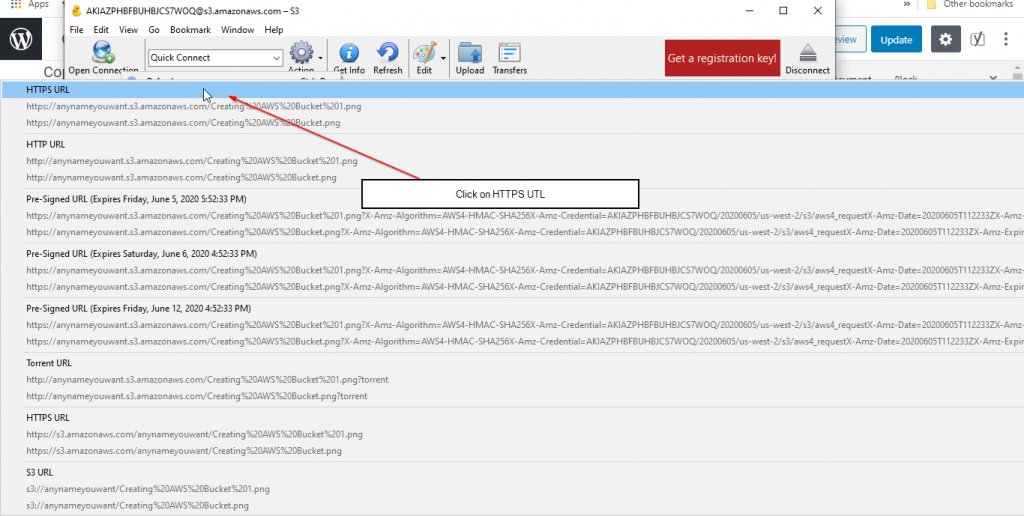
Step 3 Right click on the files and go to copy URL, then in the box that opens click copy https.
Pasting links on Remote Content Protection
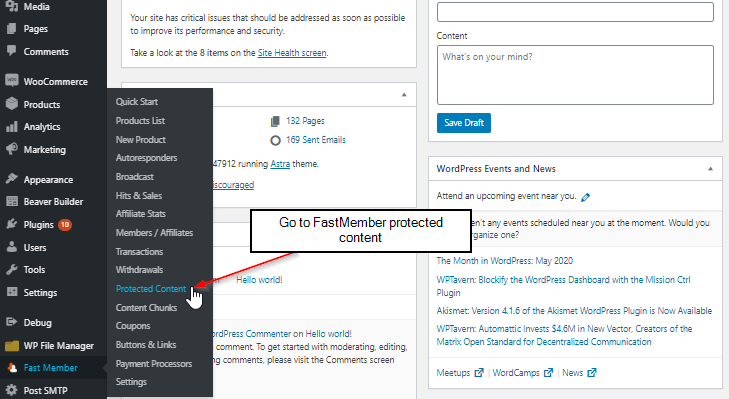
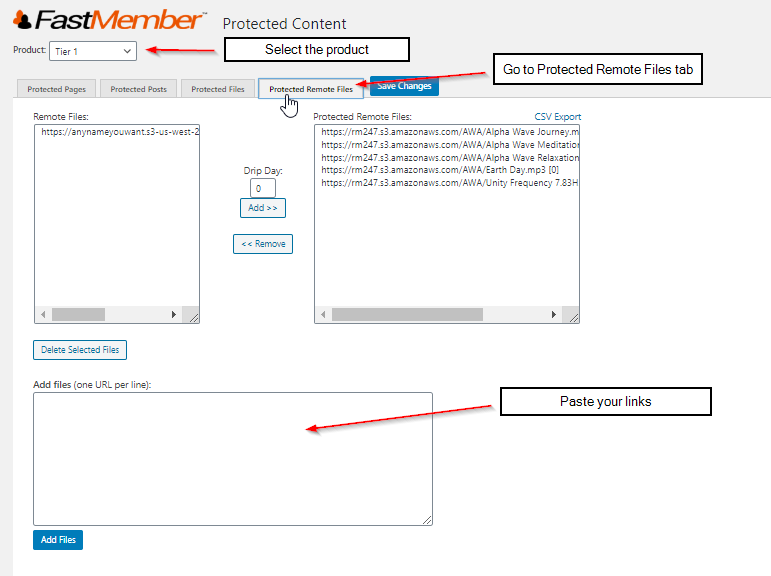
Step 1 Go to FastMember Protected Content and select the product you wish to edit.
Step 2 Go to the Protected Remote Files tab and paste the link/links in the Add Files field. If you are adding more than one file at once, make sure to insert one link per line. Finally click ‘Add Files’.
Feel free to let us know if you have any issues or concerns using any of our products by reaching us through the support page.
5.5 Dynamic Menus
When you run the Quick Start Wizard the content pages are created and structured using the WordPress parent/child page heirachy. This page structure is then used to create the default menu system on your WordPress site.
Using this menu system, the menus will dynamically update based on the products your members purchase and the drip feed days that the content becomes available
5.6 Dynamic Site Navigation
5.7 Partial Hide Content
By making use of the Fast Member Shortcodes you can partially hide content on your site and show it to members when they purchase, upgrade or login.
This is particularly useful technique if you wish to display ‘teaser content’ which will entice your site visitors to register or upgrade in order to get full access.
Here is how to set this up:
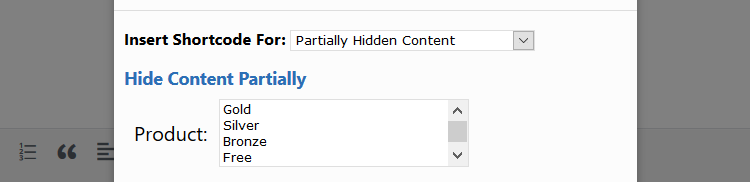
Click the orange Shortcode icon from the classic WordPress post editor
Select ‘Partially Hidden Content’ from the Insert Shortcode for list
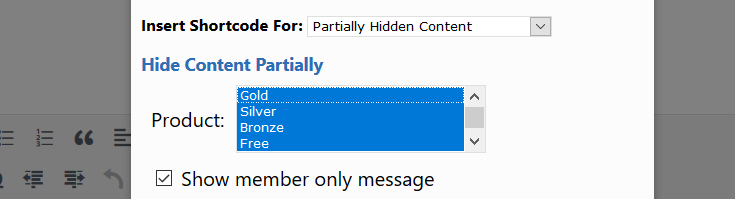
Select which products from the box. You can hold Ctrl or Shift to select multiple products
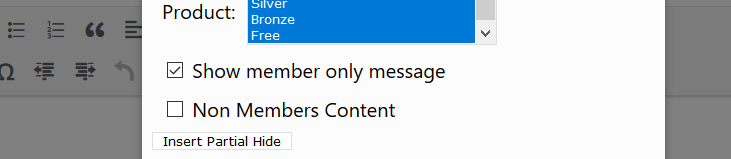
Choose if you want to display a ‘Member Only Message when the visitor doesn’t have access. This will display the Hidden Content Message which is added in the product settings
You can also set the shortcodes to display content to ‘Non Member’s’. This will work in the reverse way, displaying the content between the shortcodes until the member signs up.
Once they become a member of the product (or products) selected the non member content will disappear. This is useful if you have page specific content you want non members to see that differs from the Hidden Content Message that is added in the product settings.
When the ‘Insert Shortcode’ button is clicked a Shortcode will be added to the page as follows depending on which options you choose.
This will display the content between the Shortcodes for product 1 members and display the ‘Hidden Content Message’ from the product settings to non members.
This will display the content between the Shortcodes for members of products 1 or 3, but no Hidden Content Message will be displayed.
This will display the content between the shortcodes to anyone who is not a member of product 1. Once they join product 1 it will be hidden.
6. Transactions
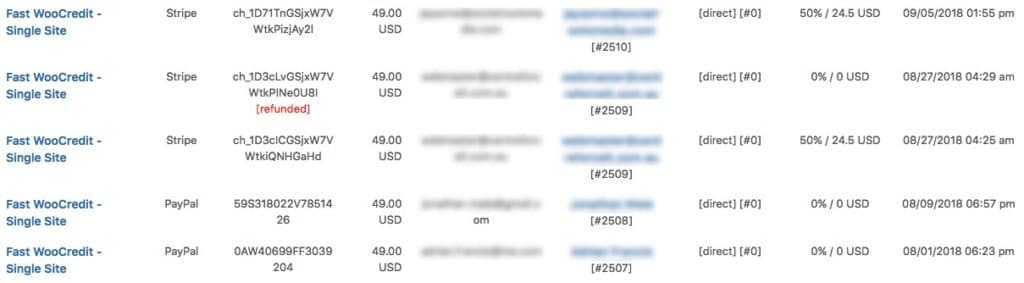
Every purchase made through Fast Member will appear in the transactions list in date order.
Fast Member Transaction List
Each transaction has the following details
Product name
Payment Processor used – the transaction list will display payments from all processors
Transaction ID – sent from the payment processor at time of sale
Amount Paid
Payer email – the email address used for the purchase which may differ from the user account email
Member – usually the email address or name of the member account who made the purchase. Below the email or name will be the WordPress user ID
Affiliate – if there was a referral for this sale they will be credited here
Affiliate Commission – how much the affiliate will be paid
Transaction Time – the time and date the transaction took place. This is based on your site’s global timezone settings
The list can be filtered by product type and also by user email and transaction ID. Partial search is supported in case you do not have a complete transaction ID or email address.
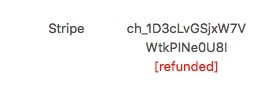
If a purchase is refunded you will see red [refunded] note against that transaction
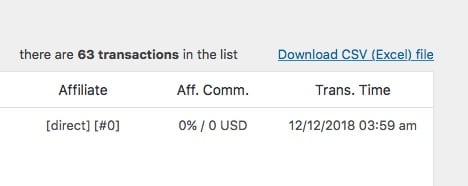
You can export a CSV of the entire transaction history or just choose transactions for a single product
CSV Export of transactions
7. Coupons
Within Fast Member you have the option to create any number of coupons to create special discounts.
These can be exclusive discounts only to members of existing products or discounts for new customers.
You can even tie a discount to a specific affiliate so they can offer a coupon with the need for their affiliate link and all sales will still be attributed to that affiliate.
Creating A Coupon For Your Products
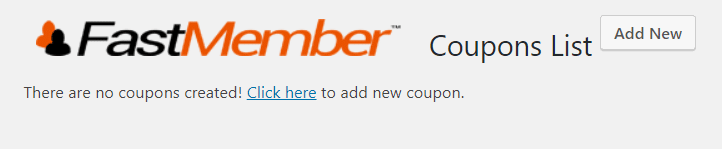
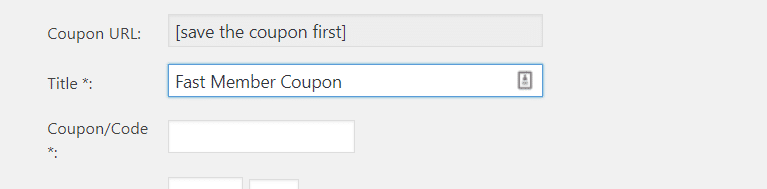
From the Coupons page click Add New
Give the Coupon a Title
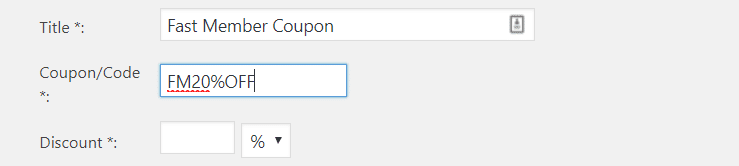
Create a Code your customers will use to activate the discount
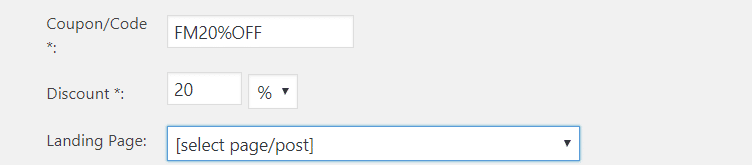
Enter the amount the product will be discounted by. This can be a percentage or a fixed amount
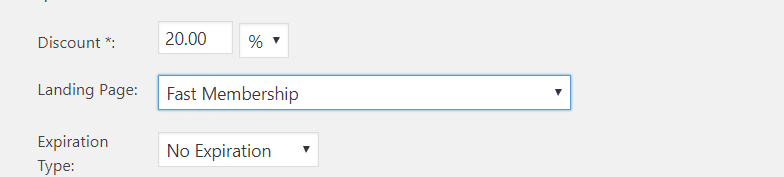
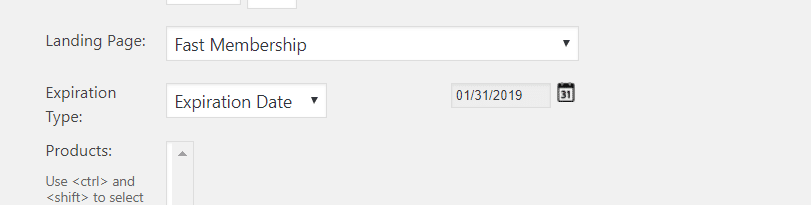
Choose a landing page. This is where anyone who clicks the Coupon URL will be taken
Choose an expiration type. This is when the coupon will expire. It can be after a number of sales or a fixed date or simply left at no expiration.
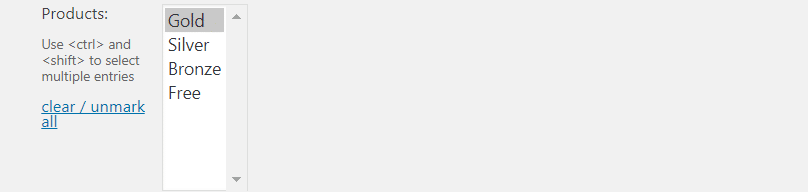
Select the products this discount will be applied to. Only the products selected will be eligible.
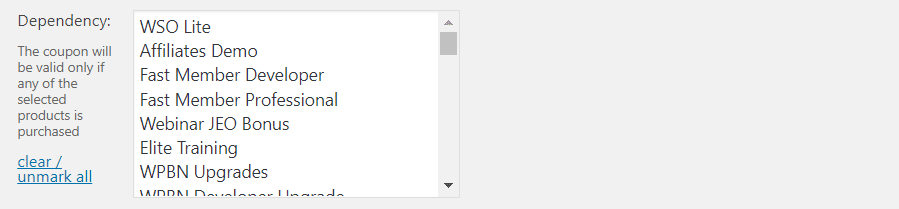
If you wish you can also choose a dependency. This will require the member to be have already purchased one of the products you select here for the discount to be made available.
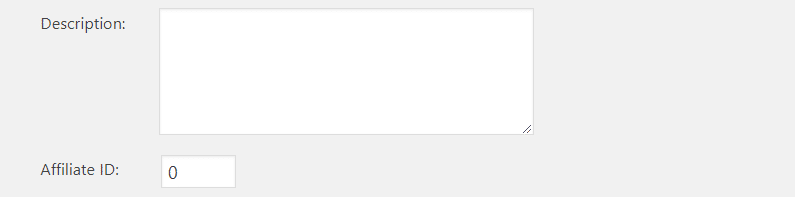
You can also add a description. This is for your internal use.
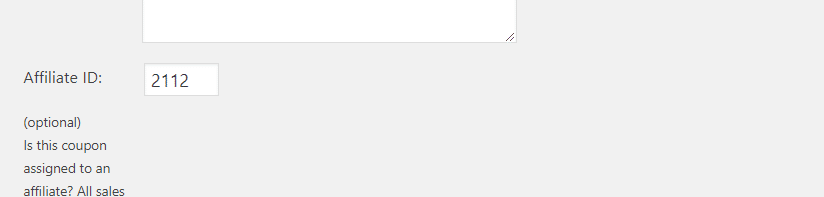
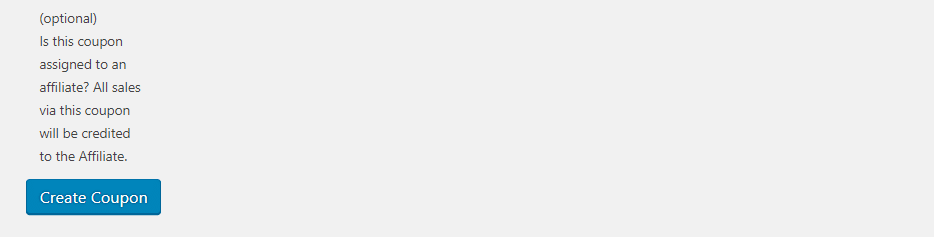
Finally if you have Fast Affiliate installed you can set an Affiliate ID which will attribute all sales through this coupon to that Affiliate without them needing to use an Affiliate link.
When ready hit ‘Create Coupon’
After creating the coupon you will be returned to the Coupon List. You will see a summary of the coupon details in each column.
You can also clone the coupon and view the stats of any hits and sales through the coupon from the options on the coupon list. When clicking back into the Coupon you will be able to copy the Coupon link for use in your promotions.
When someone clicks this link they will be directed to the Landing Page you chose and the coupon will be applied ready for them to use on checkout.
8. Integrations
Fast Member gives you a number of integrations built right in, plus support for many others through our extensive selection of add-ons.
8.1 ConvertKit Integration
Fast ConvertKit
Fast ConvertKit is designed to work seamlessly with both the Fast Flow Dashboard and Fast Member
Once your contacts have been added to WordPress you now have the ability to sync their Fast Tags and Fast Member purchases.
Fast Tags can be used to trigger automation on any other integrated platform which is supported by our growing number Fast Flow addons.
How to install the Fast ConvertKit add-on
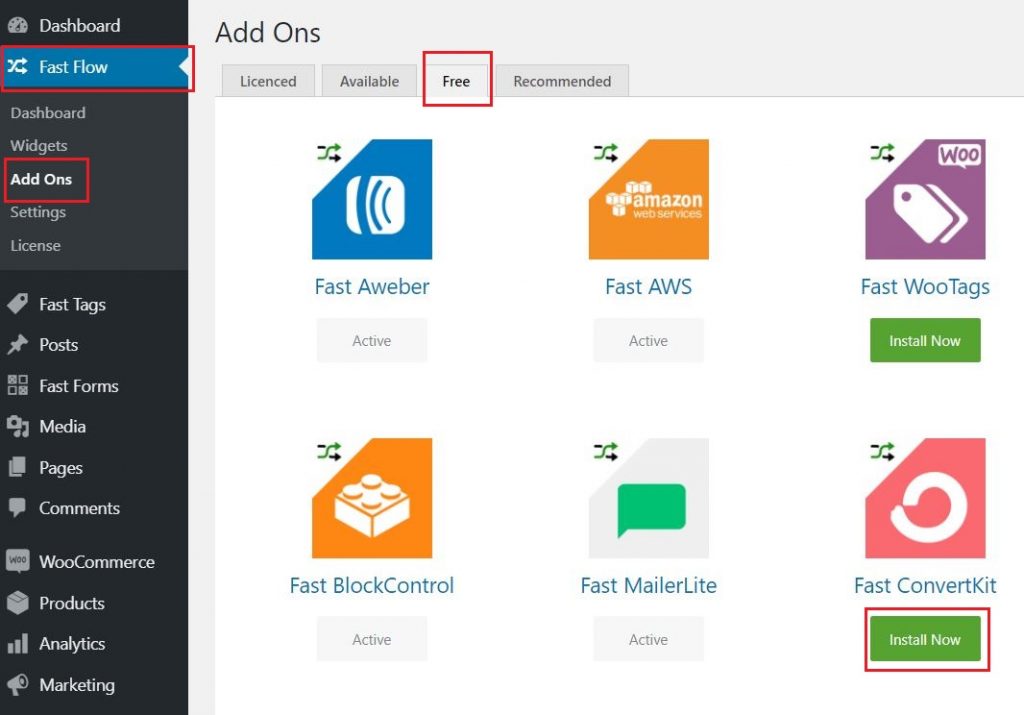
Step 1 Navigate to the FastFlow add-ons, click Free tab. Select Fast ConvertKit and click Install Now.
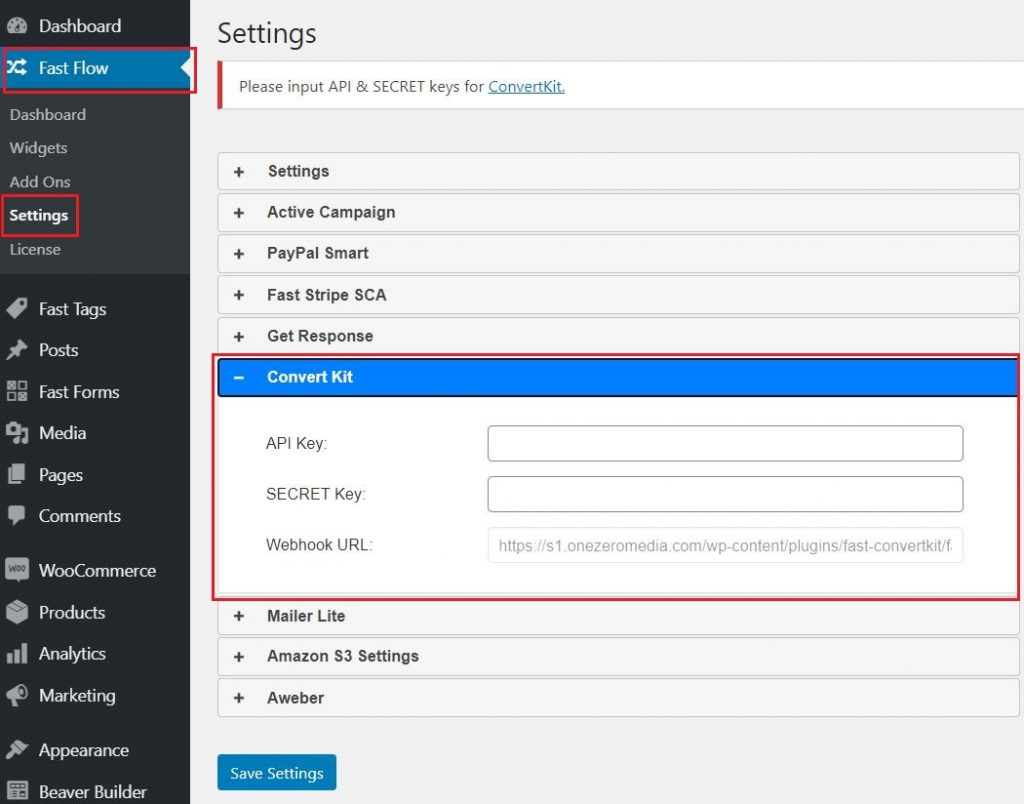
Step 2 Go to FastFlow settings on the dashboard, Click Fast ConvertKit.
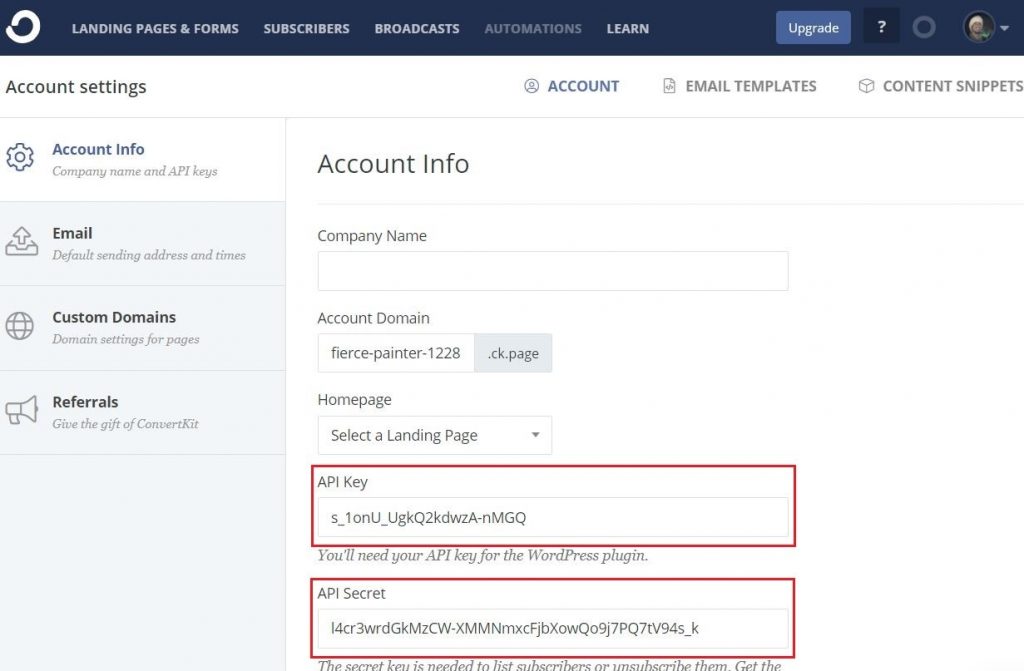
Step 3 Log on to ConvertKit account, Click profile and select Account Settings, Copy the API key & Secret Key.
Step 4 Go back to Step 2, then paste the API key & Secret Key and Save Settings.
How to Integrate with a FastMember product
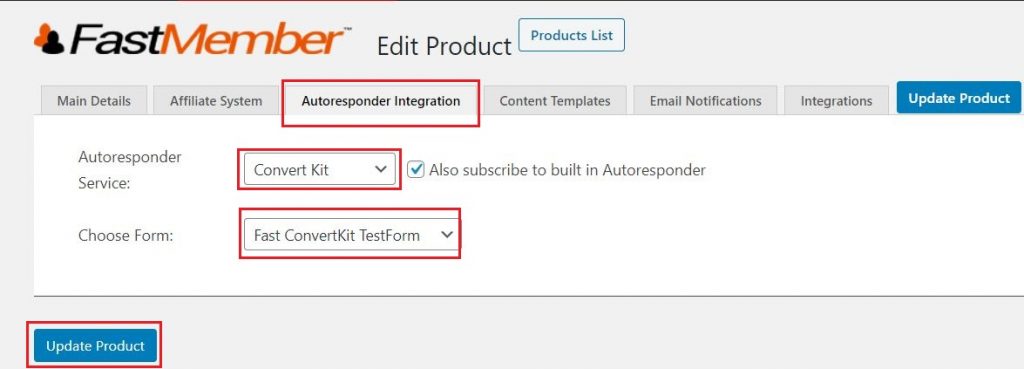
Step 1 Go to FastMember products list and click on the FastMember product you want to integrate with ConvertKit.
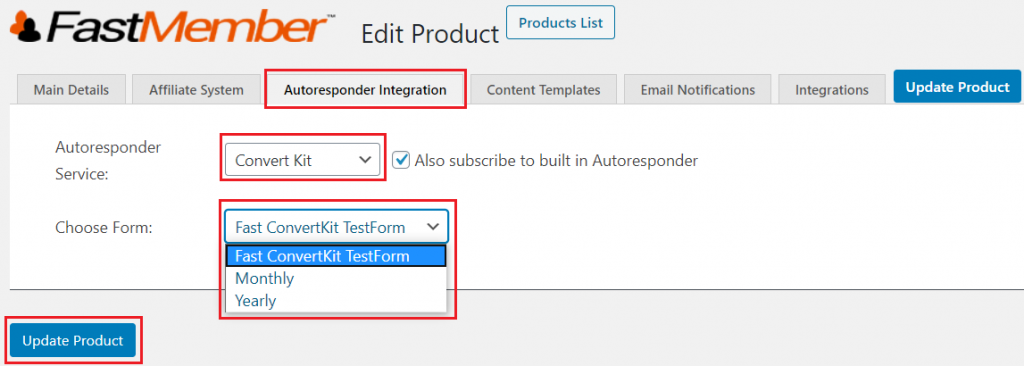
Step 2 Go to the ‘Autoresponder Integration’ tab.
Step 3 Select Convert Kit as the autoresponder service and choose the form you wish to populate in ConvertKit.
Step 4 Optionally, you can synchronize Fast Tags with ConvertKit as well. To do that, simply go to the ‘Integrations’ tab, maximize the ‘Fast Tags integration’ section and set the tag.
Step 5 Click Update Product.
Testing ConvertKit Integration
Step 1 Visit your website as a non-member and sign up for that product.
Step 2 Go into your email confirmation and confirm your subscription.
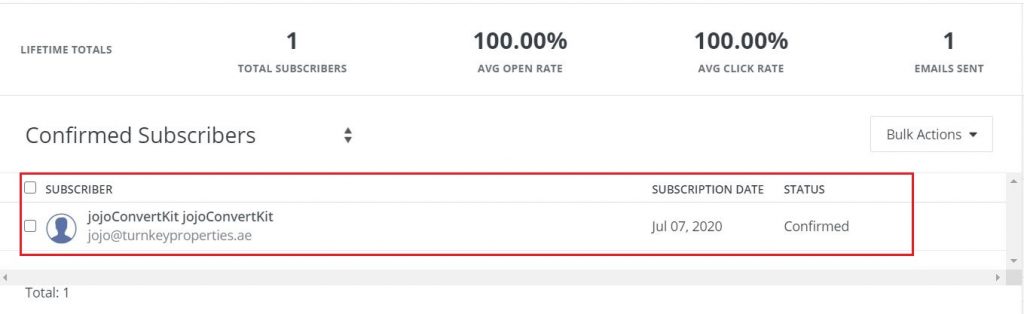
Step 3 Log on to ConvertKit,Click Subscribers menuand you can see the new user added.
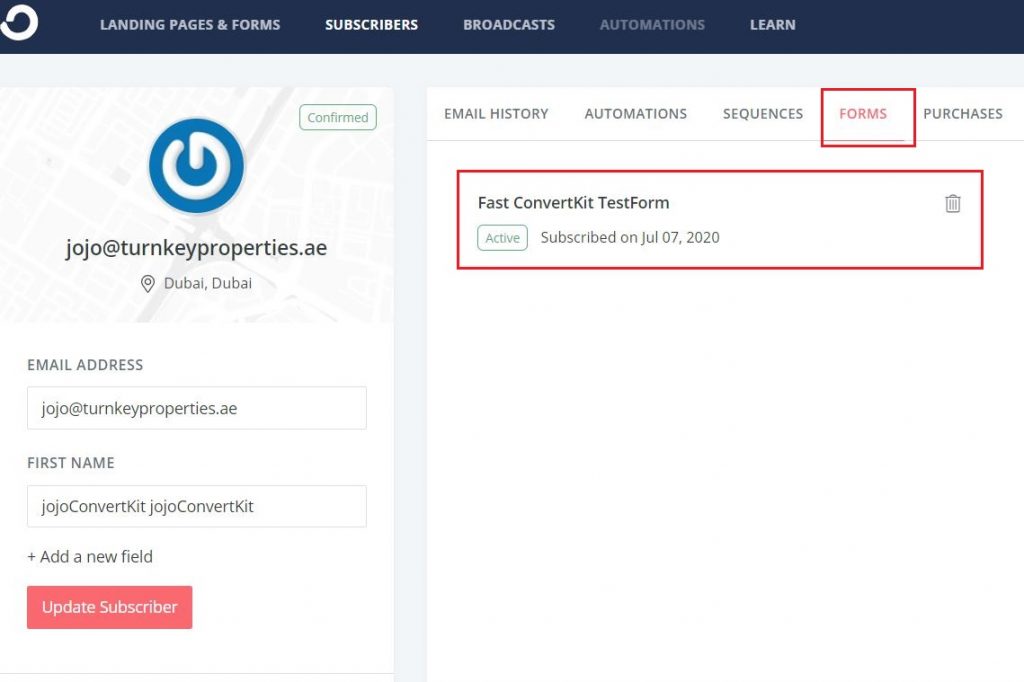
Step 4 Click on the new user added to confirm the details especially the Forms tab to check if it was synced.
Ecommerce Reporting
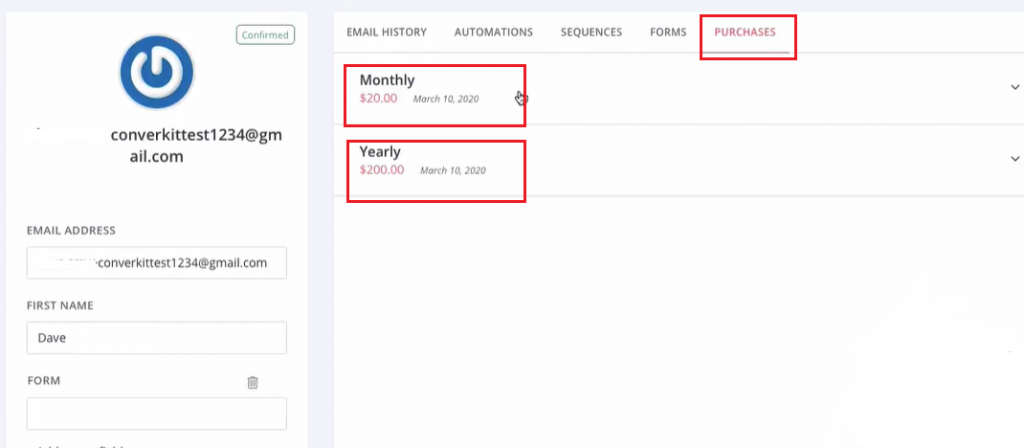
You can set up ConvertKit to work within purchases with Fast Member and Fast Flow once a user makes a purchase and appears inside ConvertKit on the Purchases tab.
Ecommerce reporting is automatically enabled when sending purchases over, you simply need a form created for each product within ConvertKit.
Once this is done setup the Fast Member products as follows:
Step 1 Make sure that Autoresponder integration is set to ConvertKit.
Step 2 Choose Form for each of the Fast member products (i.e Free, Monthly, Yearly)
Step 3 Optionally, you can synchronize Fast Tags with ConvertKit as well. To do that, simply go to the ‘Integrations’ tab, maximize the ‘Fast Tags integration’ section and set the tag.
Step 4 Click Update Product.
Step 5 Visit your website as a non-member and sign up for each product.
Step 6 Log on to ConvertKit,Click Subscribers menuand check Purchases tab for the user.
8.2 GetResponse Integration
How to Install and connect Fast GetResponse with GetResponse
GetResponse is a comprehensive marketing software platform that helps you create content, boost sales, and increase traffic to your website.
This tutorial will show you how to set up Fast GetResponse to add your Fast Member subscribers and customers to a list inside GetResponse.
By using Fast GetResponse with FastMember products, you can create dynamic email lists and keep track of your subscribers.
How to install the Fast GetResponse add-on
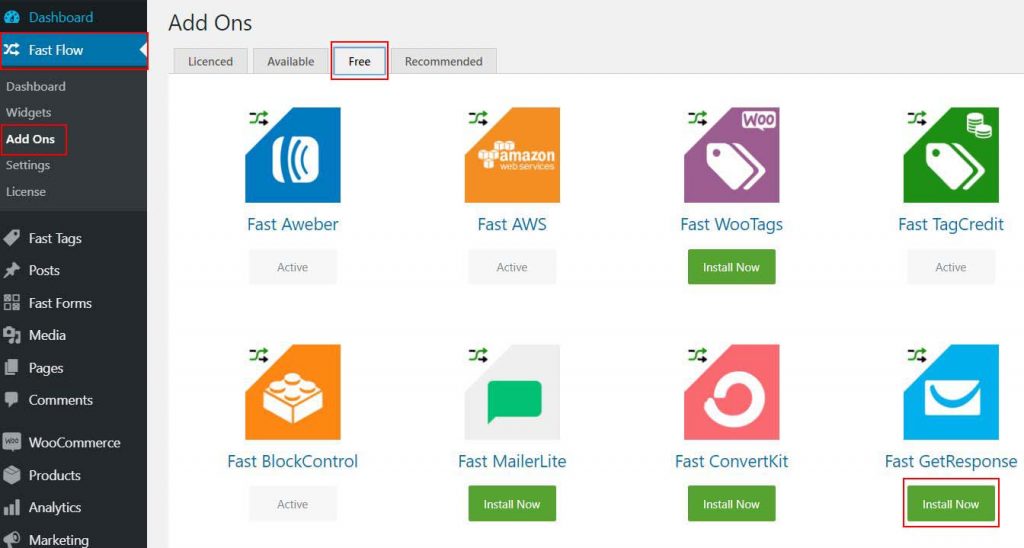
Step 1 Navigate to the FastFlow add-ons page and click on the Free tab. Click on the Install Now button under the Fast GetResponse.
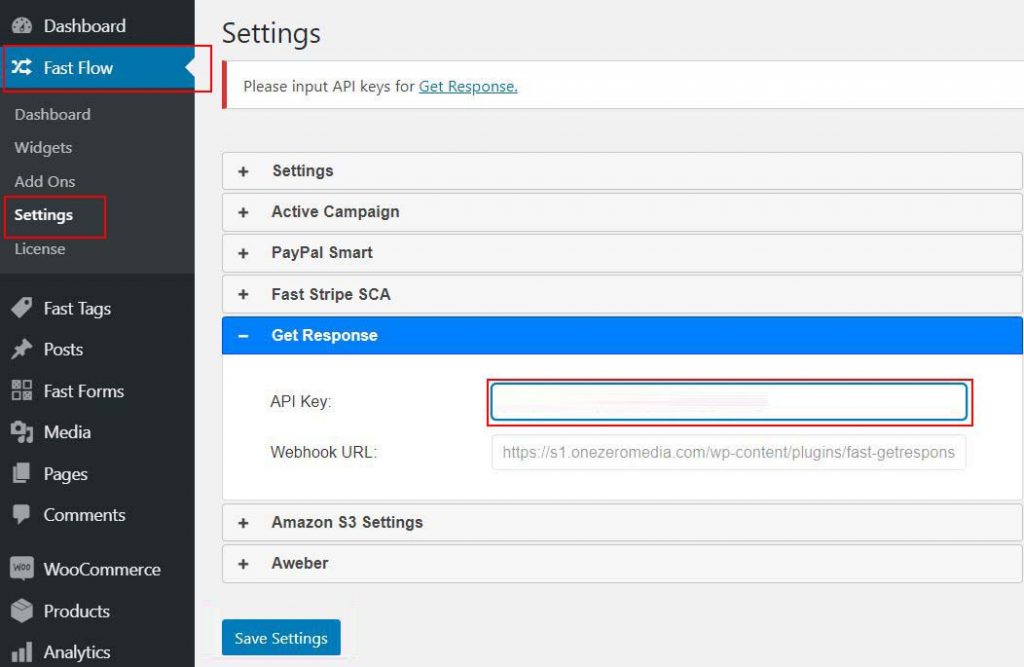
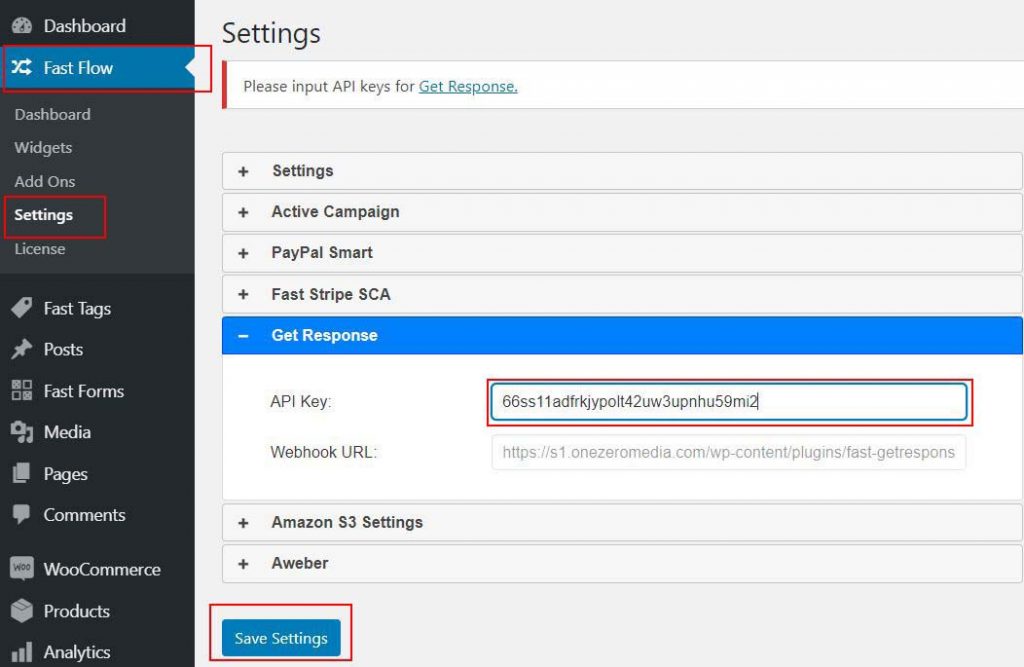
Step 2 Once installed, go to FastFlow Settings and expand the GetResponse tab and leave the window open and go to your GetResponse account to get the API Key.
How to get GetResponse API Key
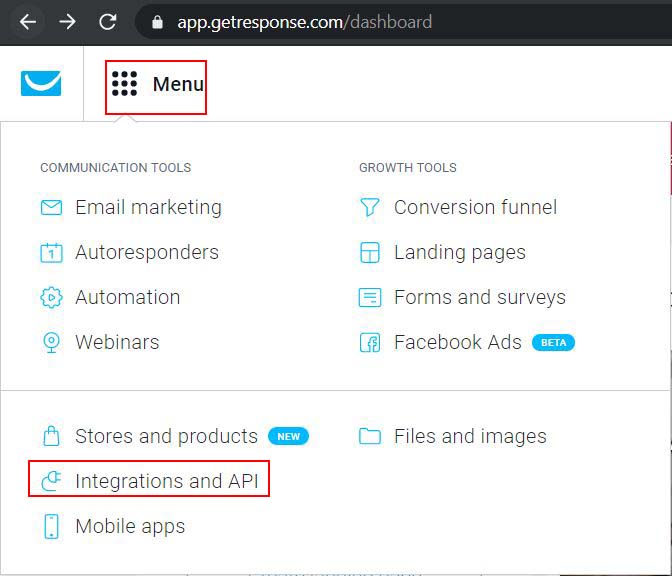
Log on to GetResponse, click Menu from the top left then select Integrations and API and then go to API tab, click Generate API Key then copy the code.
Now go back to FastFlow settings and then click GetResponse and paste the generated API Key to API key field and then click Save Settings.
FastMember is now set up and ready to use GetResponse. You can add any number of products to GetResponse by following these steps.
Step 1 Go to FastMember, click Products List and choose the product you want to integrate with GetResponse.
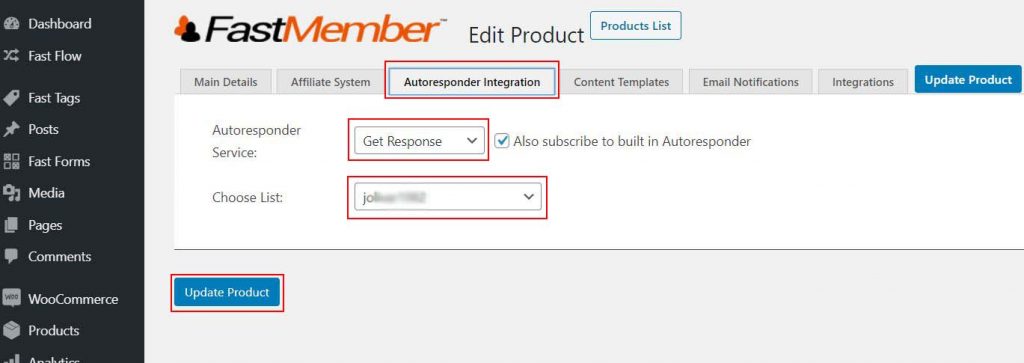
Step 2 Go to the ‘Autoresponder Integration tab’
Step 3 Select ‘GetResponse’ as the Autoresponder Service and select the list you wish to populate in GetResponse.
Step 4 Optionally, you can synchronize Fast Tags with GetResponse as well. To do that, simply go to the ‘Integrations’ tab, maximize the ‘Fast Tags integration’ section and set the tag
Step 5 Click Update Product when done with the settings.
Testing Fast GetResponse add on
To test GetResponse integration all you need to do is simply do a test sign up on your website. The steps below will guide you through checking the GetResponse Lists after doing a test sign up.
Go to a browser window where you’’re not logged in and complete the signup form or make a test purchase and check the email for confirmation.
GetResponse New user has been added
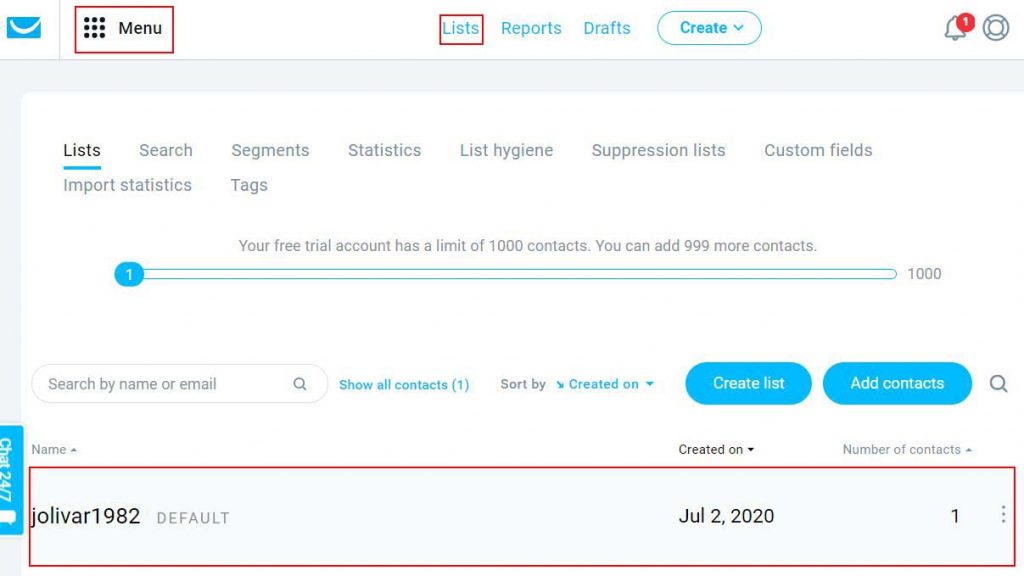
Go to GetResponse, click Menu and then click Lists and you should see a new user added from GetResponse Lists
Now go into the List you’ve synced and you’ll see that there’s a new user along with a full name has been added.
If you open that user up you will also see a tag being applied if it was configured on the FastMember product Integration tab when setting up the Autoresponder Integration process.
8.3 Sendy Integration
Integrate Sendy autoresponder with Fast Member. Add your Fast Member members to a Sendy list whenever they make a purchase.
Fast Sendy gives you a quick and easy way to add new FastMember customers to your Sendy email lists.
The moment anyone makes a purchase they will be added to the email list selected inside the Fast Member plugin.
How to install the Fast Sendy add-on
Step 1 Navigate to the FastFlow add-ons, click Free tab. Select Fast Sendy and click Install Now.
How to Integrate with a FastMember product
Step 1 Go to FastMember products list and click on the FastMember product you want to integrate with Sendy.
Step 2 Go to the ‘Autoresponder Integration’ tab.
Step 3 Select Sendy as the autoresponder service.
Step 4 Login to Sendy account and Copy Sendy URL & Sendy List ID.
Step 5 Go back to Step 3, Paste Sendy URL & Sendy List ID and Click Update Product.
Testing Sendy Integration
Step 1 Visit your website as a non-member and sign up for that product.
Step 2 Go into your email confirmation and confirm your subscription.
Step 3 Login to Sendy,Click on Sendy List and you can see the new user added.
8.4 MailerLite Integration
Fast MailerLite
Fast MailerLite is designed to work seamlessly with both the Fast Flow Dashboard and Fast Member
Once your contacts have been added to WordPress you now have the ability to sync their Fast Tags and Fast Member purchases.
Fast Tags can be used to trigger automation on any other integrated platform which is supported by our growing number Fast Flow add-ons.
How to install the Fast MailerLite add-on
Step 1 Navigate to the FastFlow add-ons, click Free tab. Select Fast MailerLite and click Install Now.
Step 2 Go to FastFlow settings on the dashboard, Click MailerLite
Step 3 Log on to MailerLite account, Click profile and select Integrations, Click Use button and copy the API key
Step 4 Go back to Step 2, paste the API Key and Save Settings.
How to Integrate with a FastMember product
Step 1 Go to FastMember products list and click on the FastMember product you want to integrate with MailerLite.
Step 2 Go to the ‘Autoresponder Integration’ tab.
Step 3 Select MailerLite as the autoresponder service and choose the group you wish to populate in MailerLite.
Step 4 Optionally, you can synchronize Fast Tags with MailerLite as well. To do that, simply go to the ‘Integrations’ tab, maximize the ‘Fast Tags integration’ section and set the tag.
Step 5 Click Update Product.
Testing MailerLite Integration
Step 1 Visit your website as a non-member and sign up for that product. Go into your email confirmation and confirm the details.
Step 2 Log on to MailerLite,Click Subscribers menuand you can see the new user added.
Step 3 Click on the new user added to confirm the details
8.5 Fast WooMember
Fast WooMember lets you integrate WooCommerce sales directly with FastMember. You have three options for syncing sales between Fast Member and WooCommerce
Sync sales of Fast Member products with WooCommerce products so an order is created within WooCommerce after a Fast Member purchase.
Sync sales of WooCommerce products with FastMember products so access to FastMember content is given after a WooCommerce purchase.
Sync both ways so an order is created in within either Fast Member or WooCommerce depending on where the original order was placed.
This gives you almost seamless integration between both platforms and opens Fast Member up to a wider range of expansion possibilities
Settings
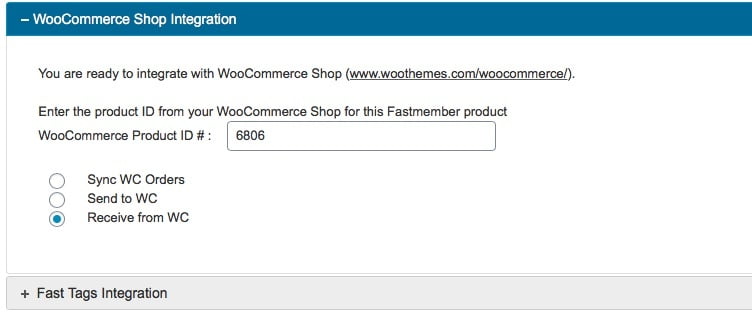
After installation the settings for Fast WooMember will appear on the integrations tab of each Fast Member product. Simply enter the product ID of the WooCommerce and choose the synchronisation method. Once a transaction is made in either Fast Member or WooCommerce the chosen sync will take place.
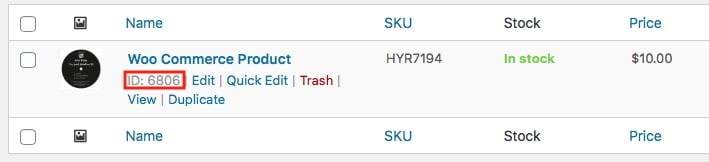
To find out the WooCommerce product ID simply hover over the WooCommerce product on the product list page. The product ID will be shown as a number.
You can also sync multiple products using a comma to separate each product ID
8.6 Active Campaign Integration
Fast Active Campaign Overview
Fast activecampaign seamlessly integrates your Activate Campaign account to your WordPress website for easily Syncing ActiveCampaign Contacts With Your WordPress Users and direct user tagging integration through the Fast Flow Dashboard.
Installing Fast Active Campaign add on
Installing Fast Active Campaign is the same as installing any other Fast Flow Add on. The steps below will guide you through installing the Active Campaign add on.
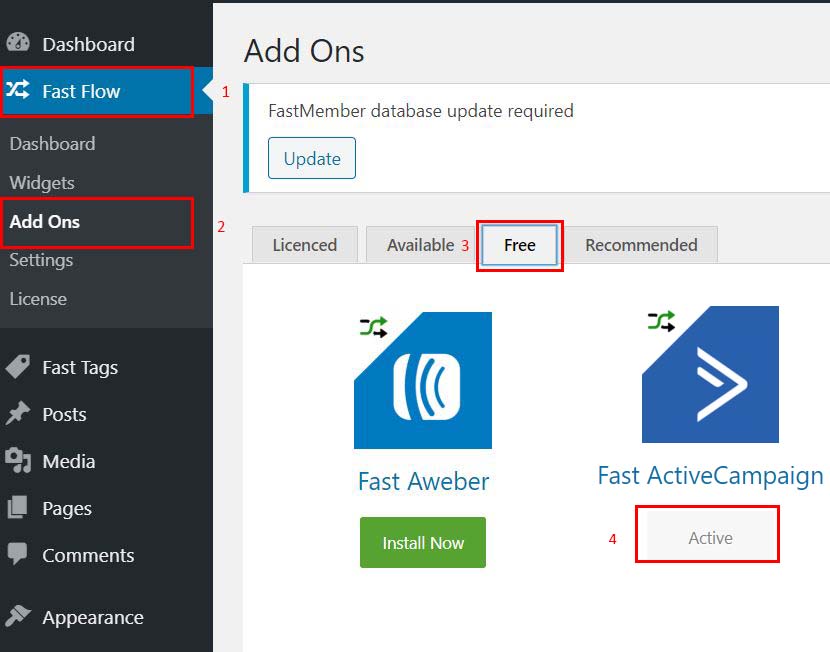
Step 1 On your site, go to the Fast Flow menu and click on Add Ons.
Step 2 Navigate to the Free tab and click ‘Install Now’ button below Fast ActiveCampaign.
Setting up Fast Active Campaign add on
To sync WordPress website with ActiveCampaign you need to get the API URL and the API Key from ActiveCampaign and add it to the Fast ActiveCampaign add on. Getting the API details and adding it to Fast ActiveCampaign is fast and easy.
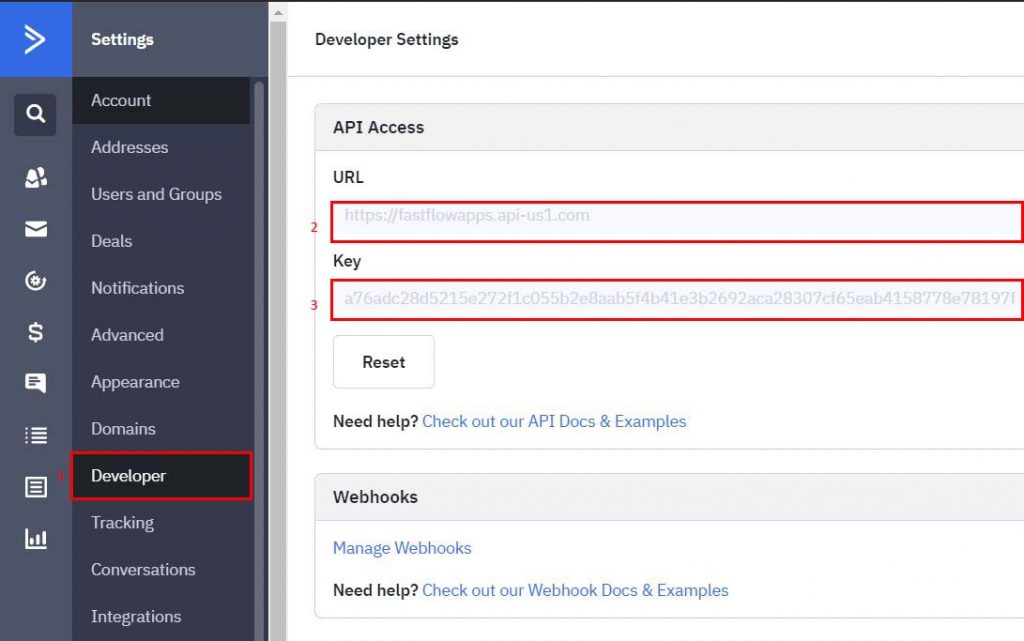
Step 1 Open ActiveCampaign, go to settings page and click on Developer settings tab.
Step 2 Copy the URL and the key.
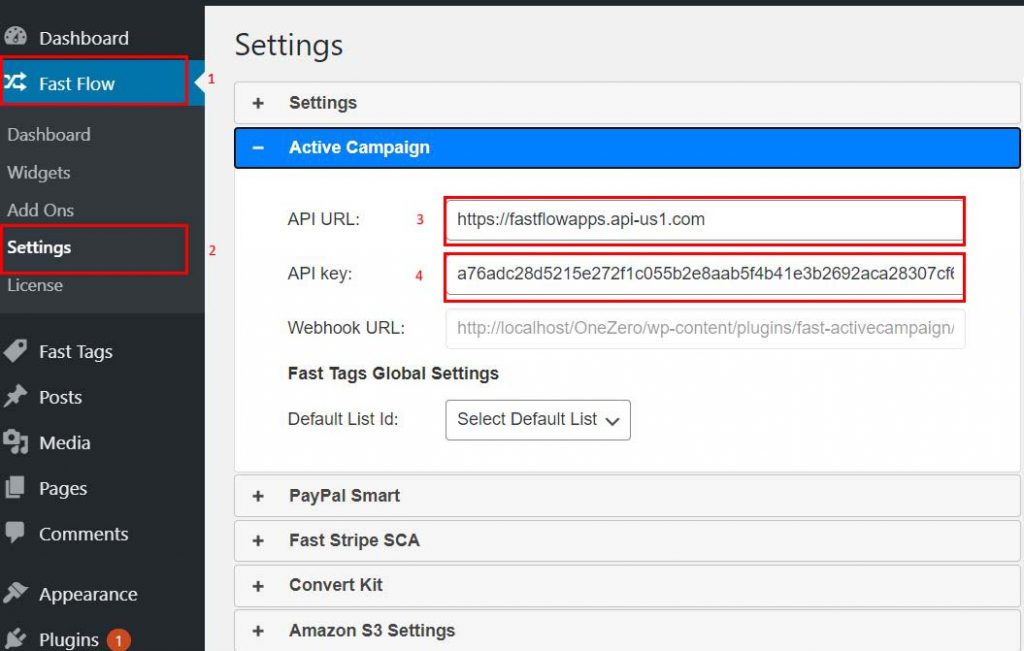
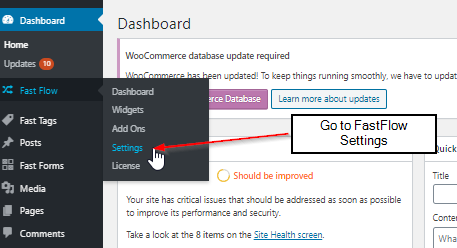
Step 3 Hover over the FastFlow icon on the left column and click on Settings.
Step 4 Expand Active Campaign tab. Insert the copied URL to API URL field and key to the API Key field then click save settings.
That should complete the integration of Active Campaign.
Using Autoresponder with a FastMember product to populate lists in Active Campaign
By using the autoresponder feature with Fast ActiveCampaign in FastMember products you can automatically sync new customers to a list on Active Campaign. The steps below will guide you on setting up Active Campaign syncing on a FastMember product.
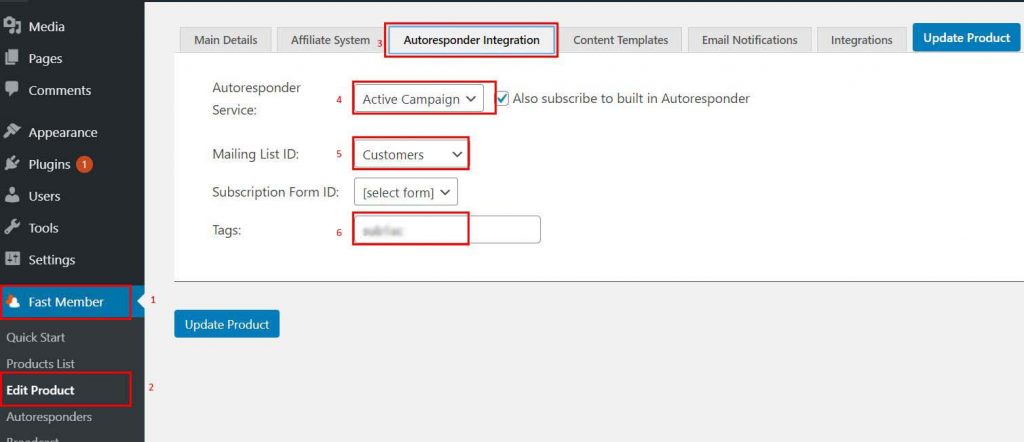
Step 1 Go to FastMember products list and click on the product that will sync the new users with Active Campaign.
Step 2 Navigate to the Autoresponder Integrations tab.
Step 3 Select Active Campaign as the Autoresponder Service.
Step 4 Select the mailing list where clients will be added to who signs up on this specific product.
Step 5 You can also insert a tag where users who sign up on this product will be tagged in Active Campaign.
Synchronising tags from Active Campaign to Fast ActiveCampaign
By adding a webhook to Active Campaign, you can import all your tags in Active Campaign to Fast ActiveCampaign. The steps below will guide you through adding a Fast ActiveCampaign webhook to Active Campaign developer settings.
Step 1 Go to settings in FastFlow, expand Active Campaign tab and copy the Webhook URL.
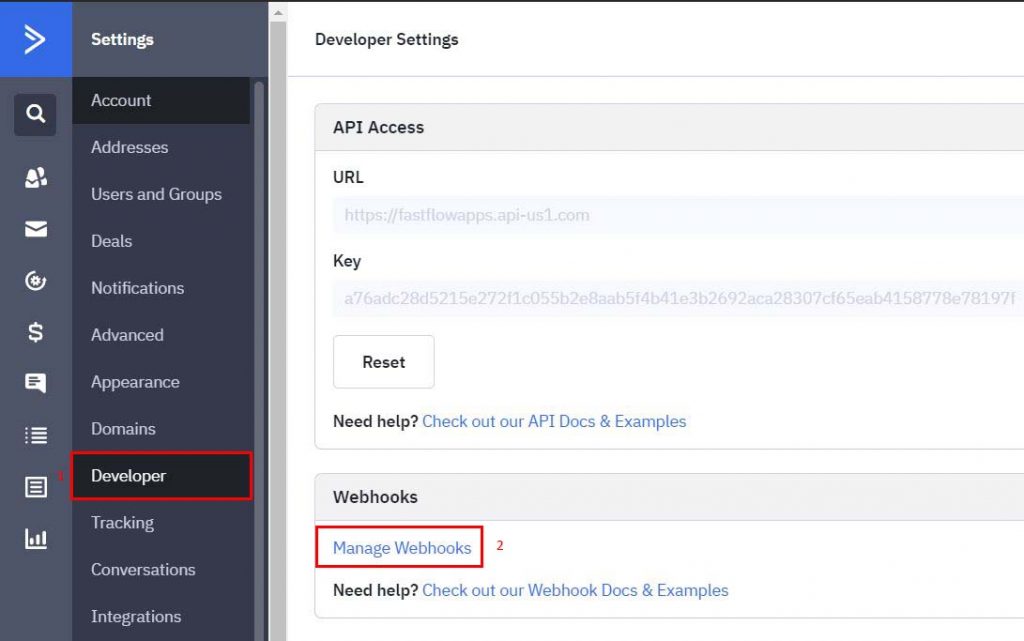
Step 2 Open Active Campaign, go to settings and click on Developer settings.
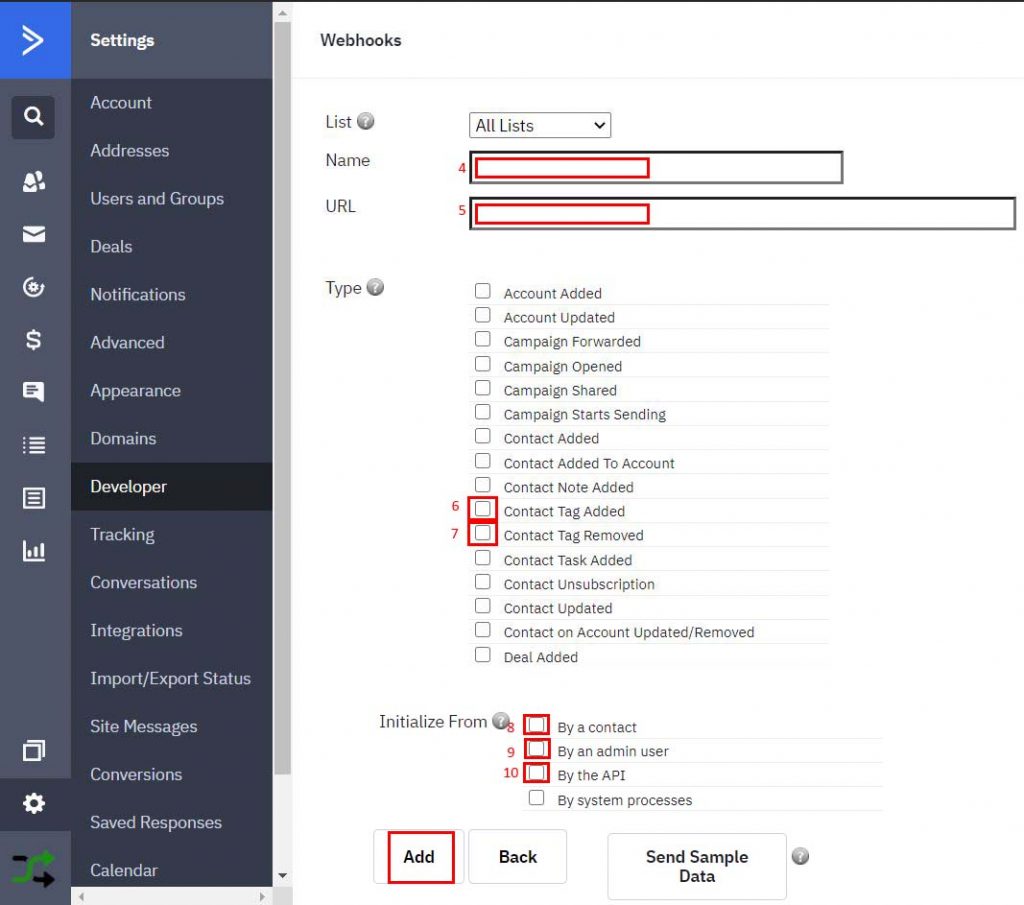
Step 3 On the Developer Settings page click on Manage Webhooks and then click Add.
Step 4 Enter a name for the webhook, the URL you copied in the step 1.
Step 5 For Type, select ‘Contact Tag Added’ and ‘Contact Tag Removed’.
Step 6 For Initialize from, select ‘By a contact’, ‘By an administrator’ and ‘By the API’.
Testing Fast ActiveCampaign add on
To test the Fast ActiveCampaign plugin you need to configure the settings and sign up a new user on the product that you configured Fast ActiveCampaign for.
Step 1 Follow the tutorial to configure Fast ActiveCampaign add on and a product list for Active Campaign.
Step 2 Go to the sign up page of you website and sign up a test user for the product that you configured Active Campaign for.
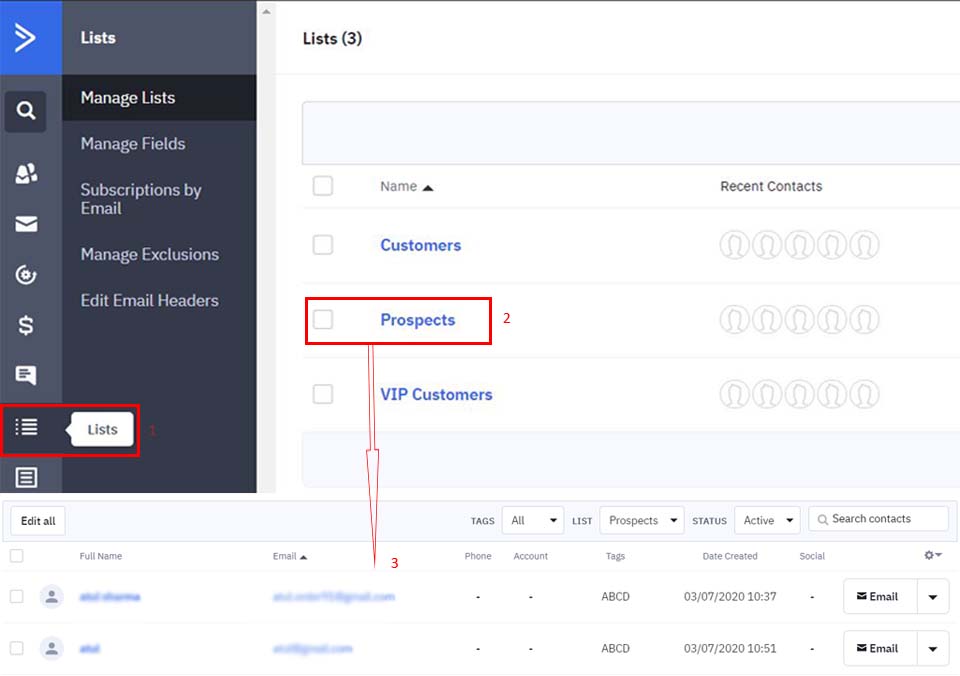
Step3 Go to the Active Campaign list you configured and check if the user entry has been added there. If you’ve added a tag while setting up Fast ActiveCampaign, that tag should be added to Active Campaign list too.
Fast Tags with Fast ActiveCampaign
In addition to selecting the Fast ActiveCampaign tag from the auto integrations page, a user can also choose to manually create tags and assign them to a product.
This can be useful if you want to synchronize tags for refunds and cancellations of any products.
Adding a new tag to a FastMember product using Fast Tags
To add a new tag to Fast Tags, simply follow the steps below.
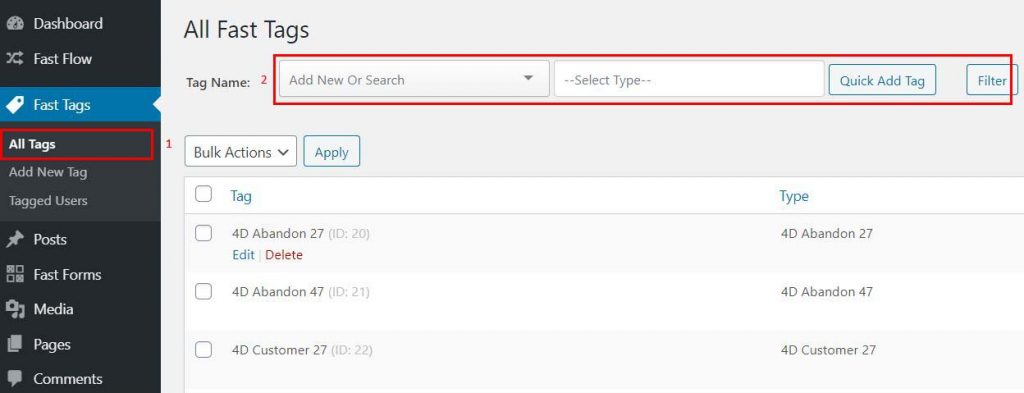
Step 1 Go to Fast Tags and click on All Tags.
Step 2 On the Add New or Search box on top just enter the Tag name and press enter.
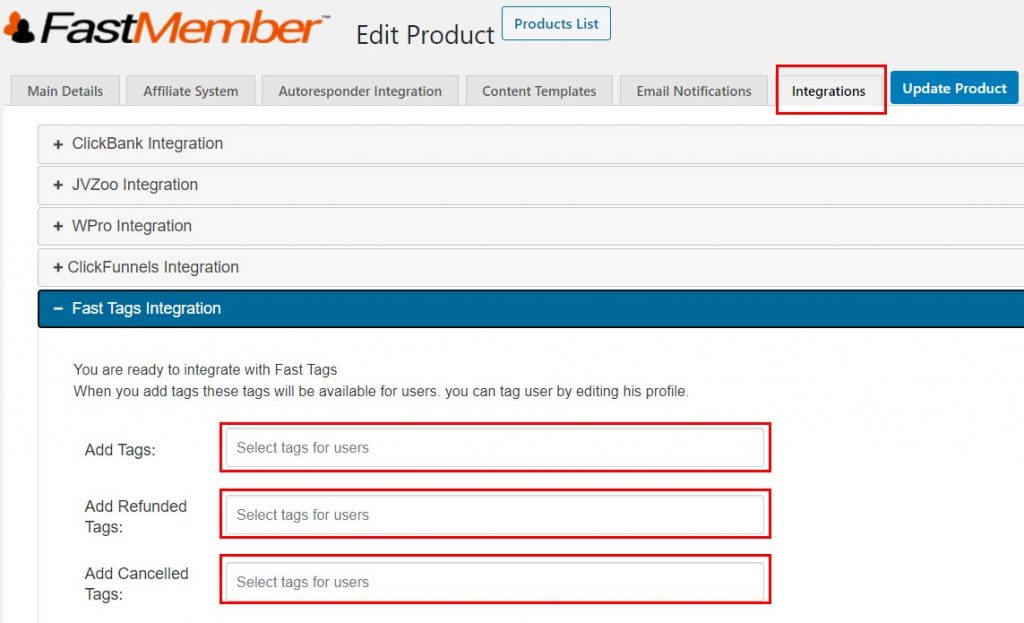
Step 3 Go to the FastMember product you wish to assign the tag for.
Step 4 Go to integrations and expand the Fast Tags Integration tab.
Step 5 Assign the tag.
Step 6 (Optional)
Go back to Fast Tags and click on the Edit Tag. Here, select Active Campaign List. By performing this optional step you are telling Fast Tags to insert whatever product to tag with to a specific list on Active Campaign.
8.7 Aweber Integration
Fast Aweber Overview
Fast Aweber allows you to seamlessly integrate your WordPress website to Aweber. Aweber is an email marketing app that allows you to create a mailing list and capture data onto it alongside design newsletters which can be sent to the subscribers on your list.
By using Fast Aweber with FastMember products, you can create dynamic email lists and keep track of your subscriptions. It also lets you incorporate Fast Tags so classifying them and automating is easier.
How to install and connect Fast Aweber with the Aweber account
Installing the Fast Aweber add-on is as easy as installing any other add-on on FastFlow. The steps below will guide you on installing Fast Aweber and connecting the installation with your Aweber account.
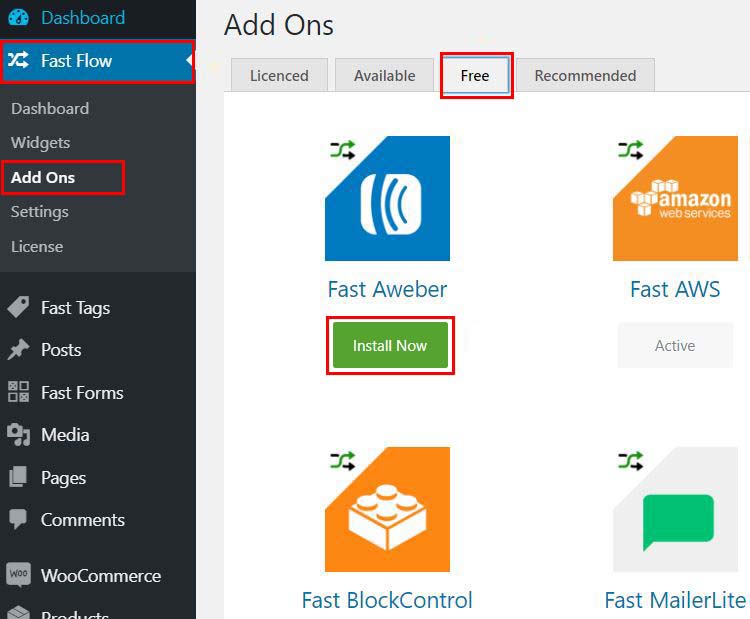
Step 1 Navigate to the FastFlow add-ons page and click on the Free tab. Click on the Install Now button under the Fast Aweber.
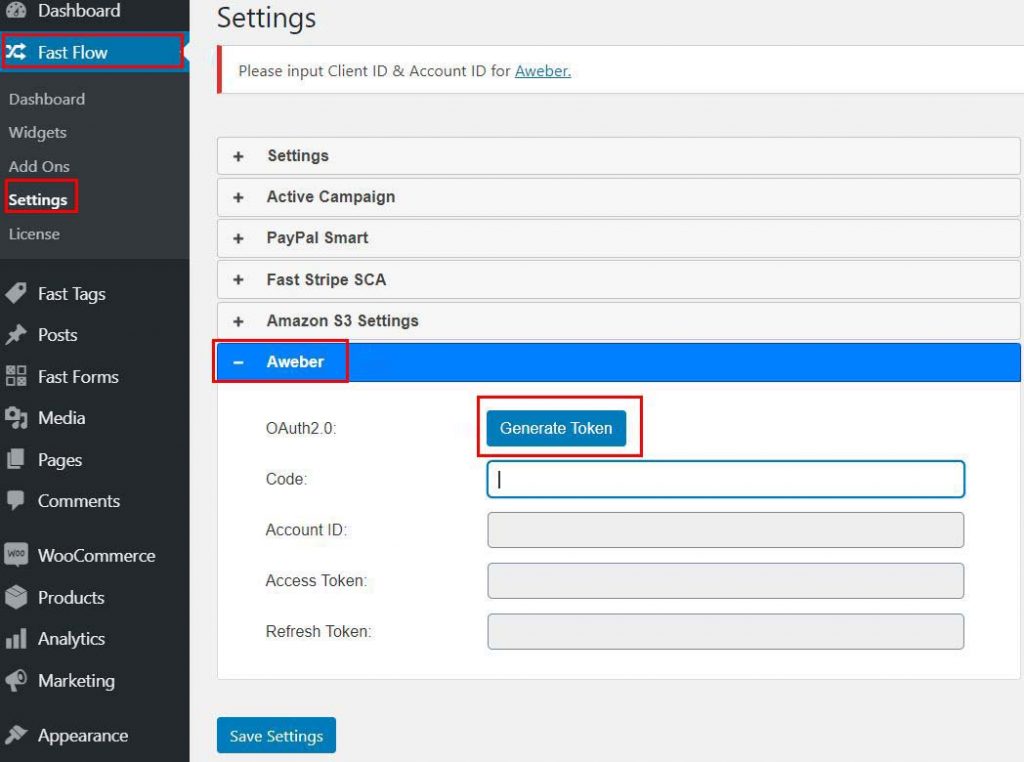
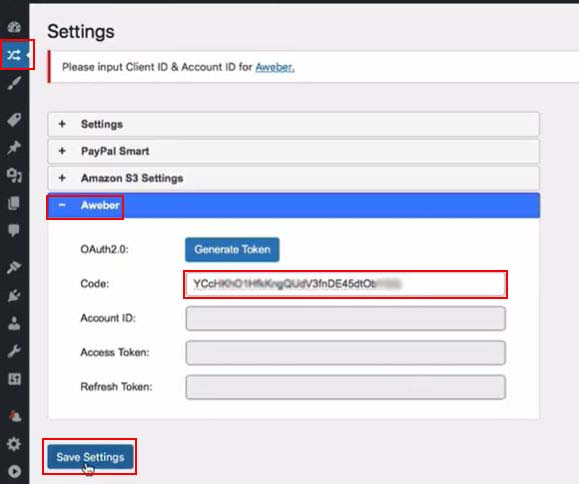
Step 2 Once installed, go to FastFlow Settings and expand the Aweber tab and click on the Generate Token button and it will re-direct you to Aweber login.
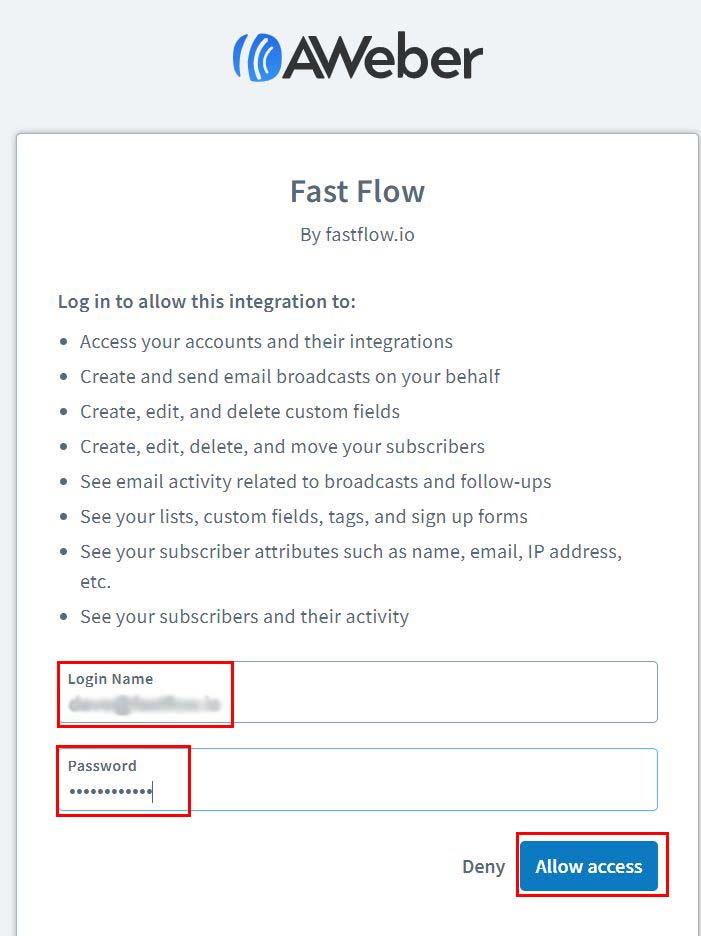
Step 3 Once at the Aweber login enter your credentials to login to Aweber. If you do not have an account, feel free to sign up for an account.
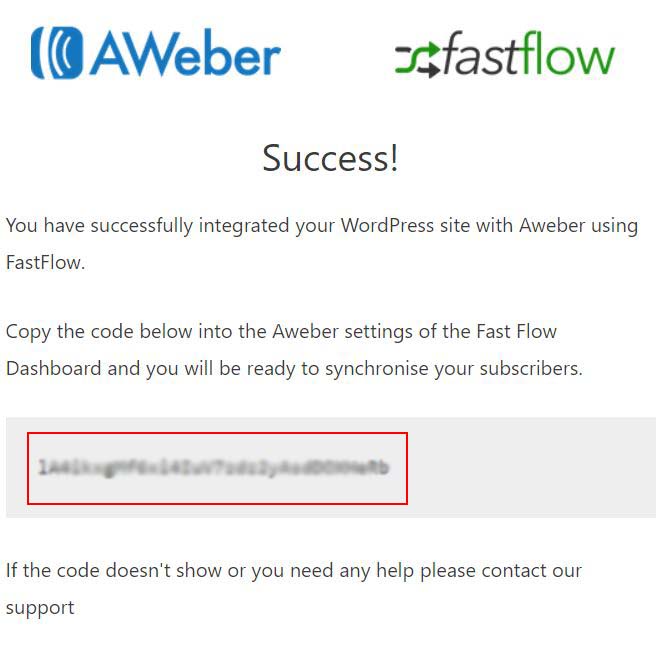
Step 4 Once you’ve logged in and activated Aweber you will see a success site generated by FastFlow. There is a uniquely generated token code on this page. Copy it.
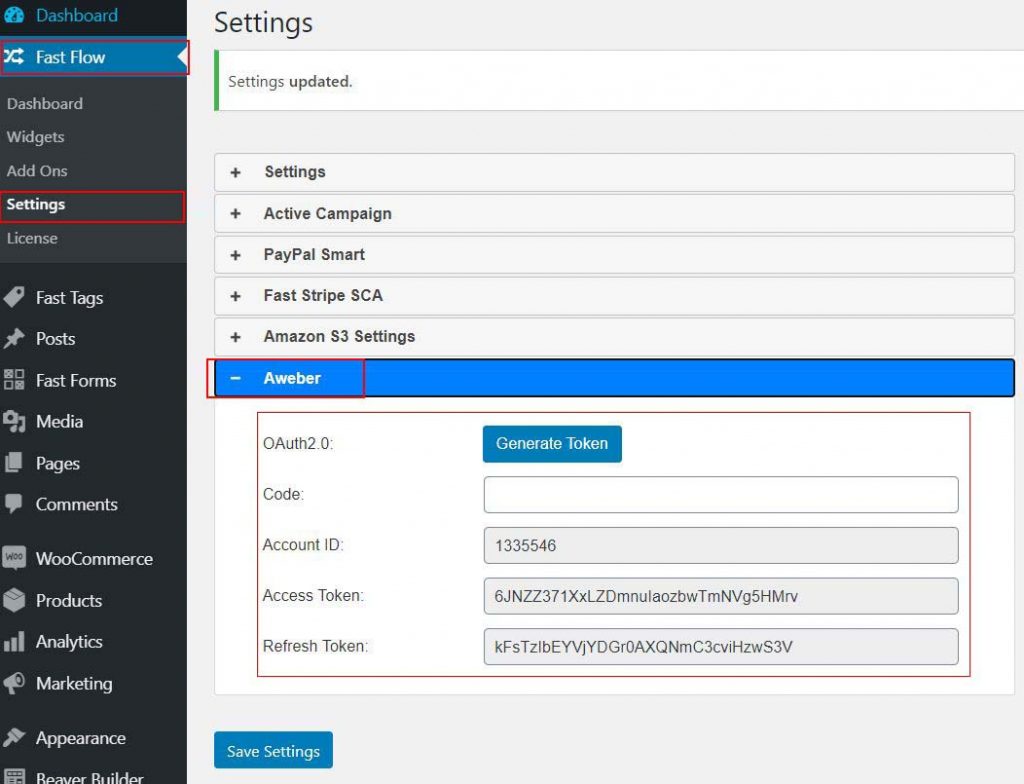
Step 5 Go back to FastFlow plugin, click Settings and click Aweber then paste the copied token into the Code field, click Save Settings.
Step 6 If you check Aweber settings again on FastFlow, you will see that Account ID, Account Token and Refresh Token fields have been populated. This means you are successfully connected with Aweber.
Integrating with a FastMember product
You can integrate Aweber with FastMember products using the ‘Autoresponder Integration’ tab in the FastMember product menu. The steps below will guide you through integrating Aweber with FastMember products.
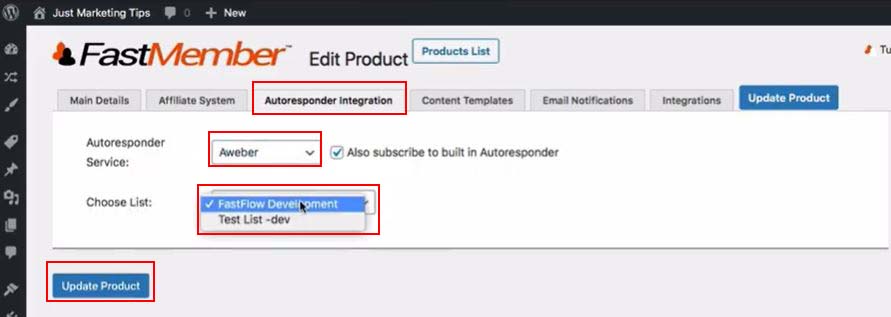
Step 1 Go to FastMember Add-on, click Products List and choose the product you want to integrate with Aweber.
Step 2 Go to the ‘Autoresponder Integration tab’
Step 3 Select ‘Aweber’ as the Autoresponder Service and select the list you wish to populate in Aweber.
Step 4 Optionally, you can synchronize Fast Tags with Aweber as well. To do that, simply go to the ‘integrations’ tab, maximize the ‘Fast Tags integration’ section and set the tag.
Step 5 Finally update the list.
You can add any number of products to Aweber by following these steps.
Testing Aweber Integration
To test Aweber integration all you need to do is simply do a test sign up on your website. The steps below will guide you through checking Aweber statistics after doing a test sign up.
Step 1 Perform a test sign up on your website on a FastMember product that you have already integrated with Aweber using Fast Aweber. When done, proceed to Aweber dashboard.
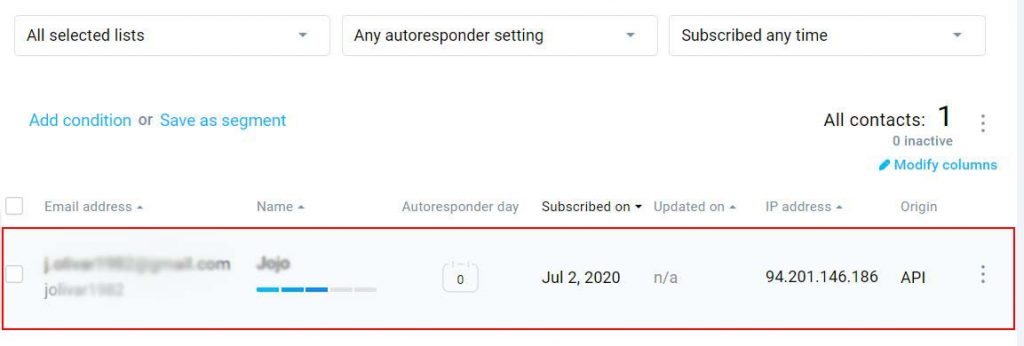
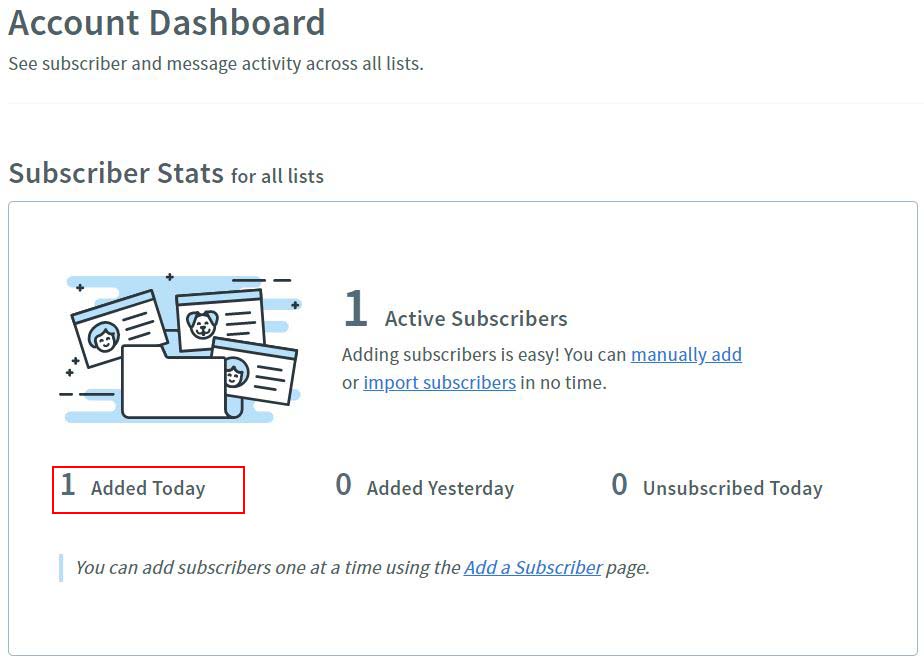
Step 2 You will directly see the added entries in the subscriber stats
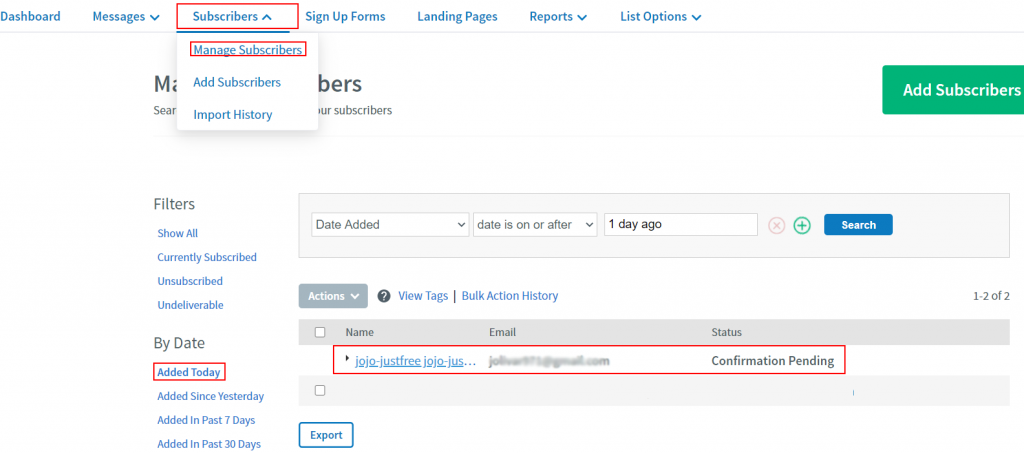
You can view the subscribers by going into ‘‘Subscribers’ and ‘‘Manage Subscribers’.
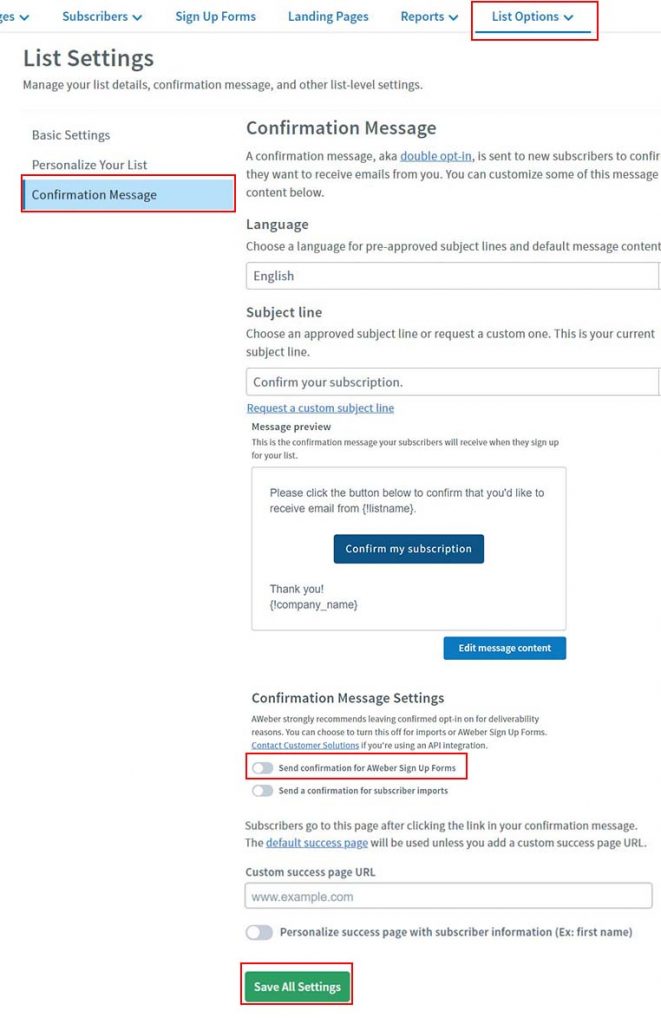
If you don’t want your subscribers to require confirmation, you may need to contact Aweber and request them to turn off API Confirmation depending on your needs.
8.8 Amazon S3
Setting up Amazon S3 File Protectionusing Fast AWS
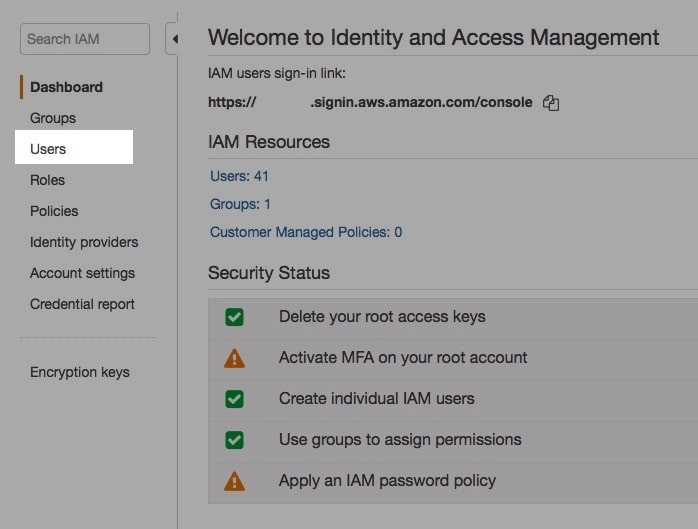
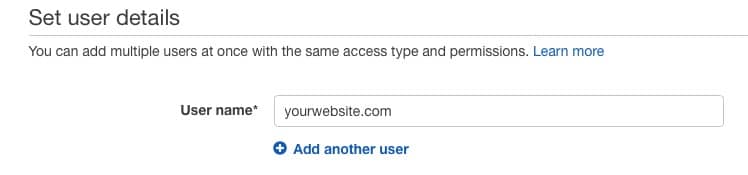
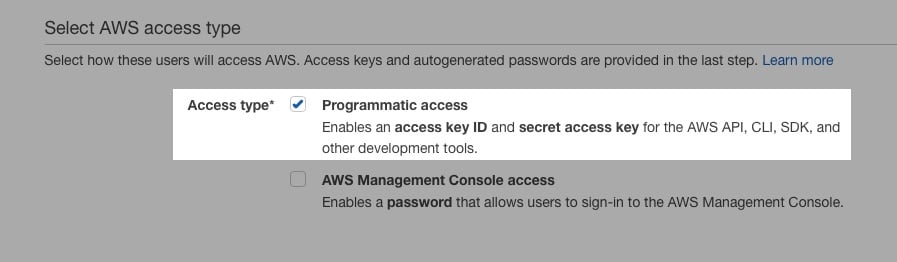
Fast AWS add on by Fast Member gives you secure file delivery using the Amazon S3 API. To use this feature you will need an Amazon account where you will login to the console and create an user using IAM. This user access key will be added to Fast AWS add on to integrate your website to your AWS account.
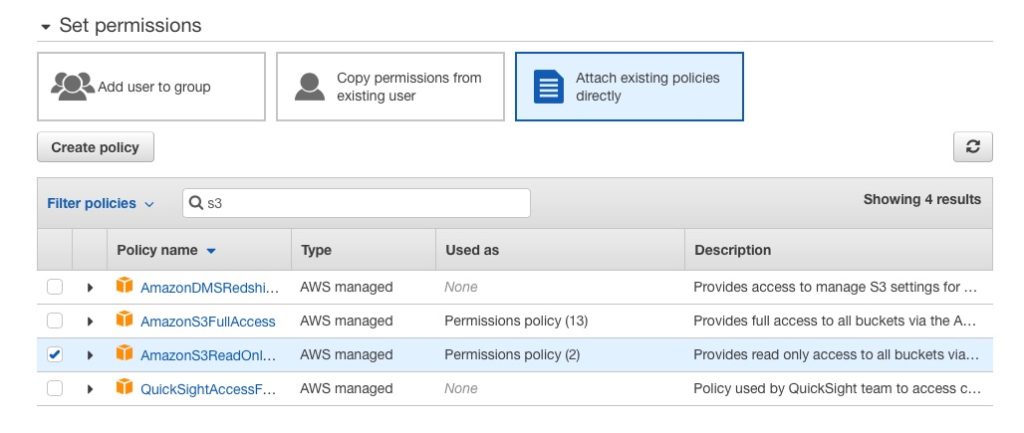
Step 6 Set permissions – Choose ‘Attach existing policies directly’ and use the filter to search for S3. You will see the available Amazon S3 options. You can choose ‘AmazonsS3ReadOnlyAccess’ as you will simply be fetching files from the buckets where you have added them.
Set permissions for the IAM user
Step 7 Click Next: Tags
Click Next: Tags
Step 8 You can ignore the page for Add tags and click ‘Next: Review’
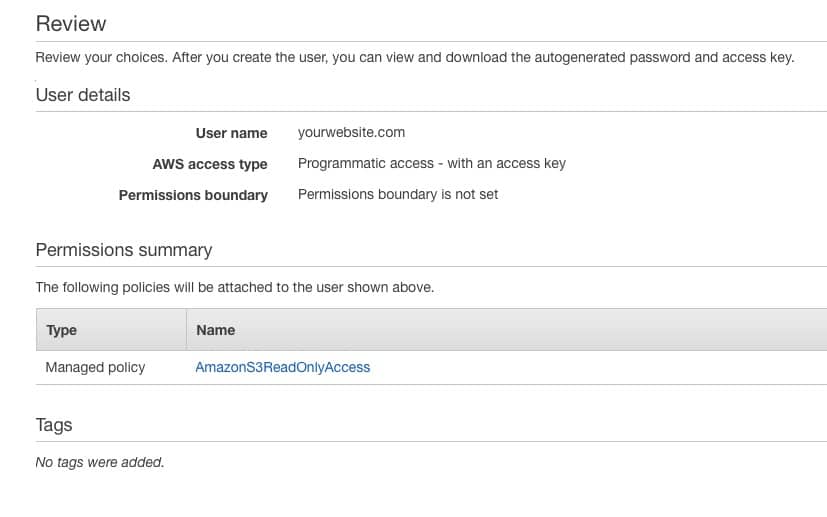
Step 9 On the review page you can confirm the details are correct. You should have a user name and the AWS access type. If you are happy with what you see then click create user.
Review Amazon user IAM permissionsClick Create User
Once the user is created you will be taken to the success page where you can download a CSV with the Access ID and Secret Key. Save this somewhere safe as this will be the only time these details will be available. You can also view the Access Key and Secret Key from the Amazon IAM console page until you close it.
Save the IAM access keys
Adding Amazon S3 IAM Details to Fast AWS
Now you have the Access ID and Secret Key you can copy these into the Amazon S3 section of the Fast AWS add on plugin.
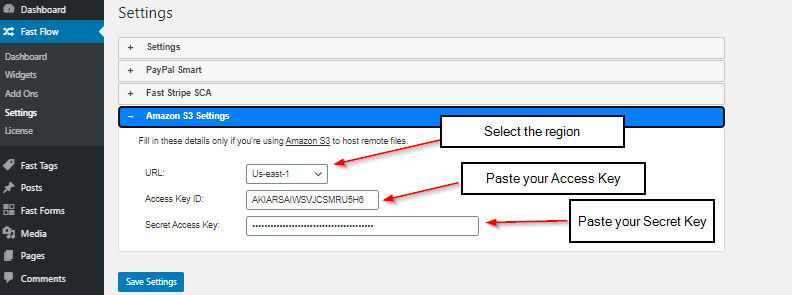
Step 1 Go to settings page on FastFlow and expand the ‘Amazon S3 Settings’ section.
Step 2 Select your AWS region from the drop-down list. Paste the ‘Access Key ID’ in the first field and the ‘Secret Access Key’ in the bottom field. Finally hit ‘Save Settings’
Once saved Fast AWS file protection will now be linked to Amazon S3 and you can use the Protected Remote Files section of the Fast Member Protected Content to add your Amazon S3 based URLS.